
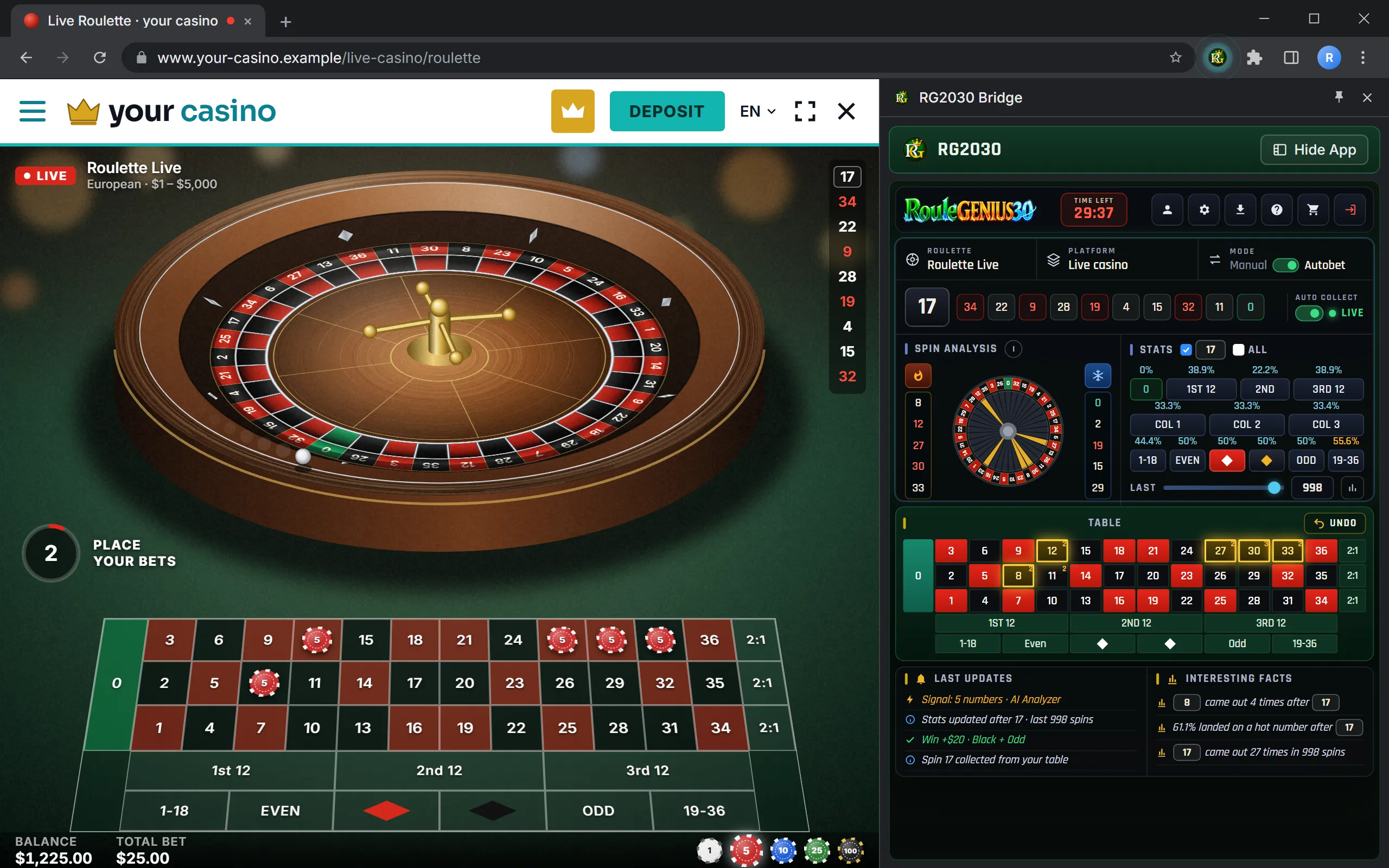
The RG2030 Bridge is the small Chrome addon that connects RG2030 to the live roulette you are playing. It reads the results shown on the casino page and sends them to your RG2030 dashboard in real time, so you never type a number. From the Premium level it can also place the bets for you (AutoBet). Nothing is installed on Windows or Mac: the Bridge lives inside Chrome and opens in a side panel next to the casino.
What the RG2030 Bridge does
- Collects the numbers automatically. It reads the last spin results on the casino page. If a site does not allow it, you can paste the numbers instead.
- Remembers each roulette. You save a profile for every table you play, and the Bridge remembers where its results are.
- Places the bets for you, if you want (Premium). With AutoBet on, it clicks the bets chosen by RG2030 on the casino table.
- Keeps your casino account private. The Bridge never asks for your casino username, email or password.
Before you start
- A computer with Google Chrome.
- An RG2030 account. Register with your email and a password, then click the confirmation link we email you (check your spam folder if it does not arrive).
- Minutes on your RG2030 account, from $50. See the pricing.
Install the RG2030 Bridge in Chrome: 6 steps
The Bridge comes from our server, not from the Chrome Web Store, so Chrome may call it not verified. That is expected. Click any picture to see it full size.
- 1
Download the addon
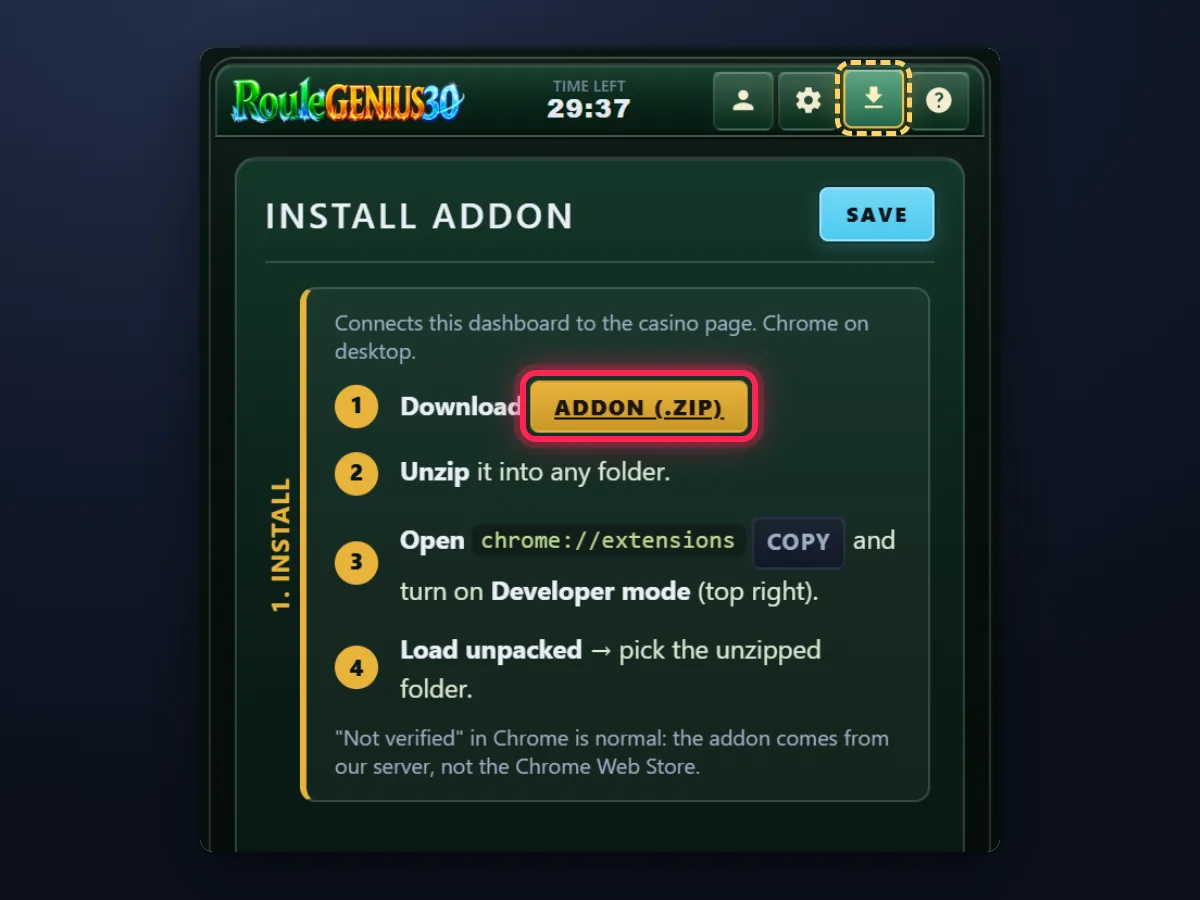
Log in to RG2030, click the download icon at the top of the dashboard (Install Addon) and press Addon (.zip).

- 2
Unzip it
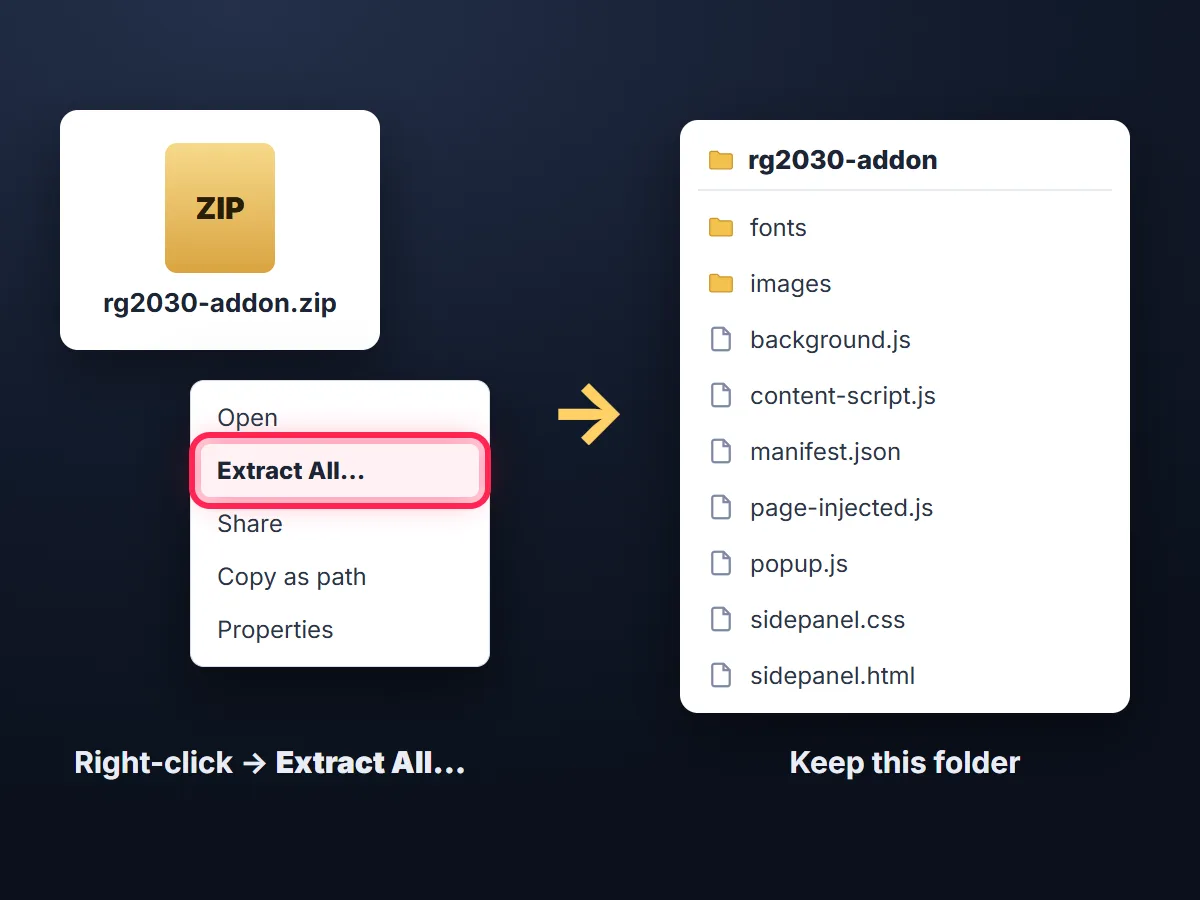
Right-click the file and choose Extract all. Keep the folder: Chrome runs the Bridge from it, so do not move or delete it later.
- 3
Open the extensions page
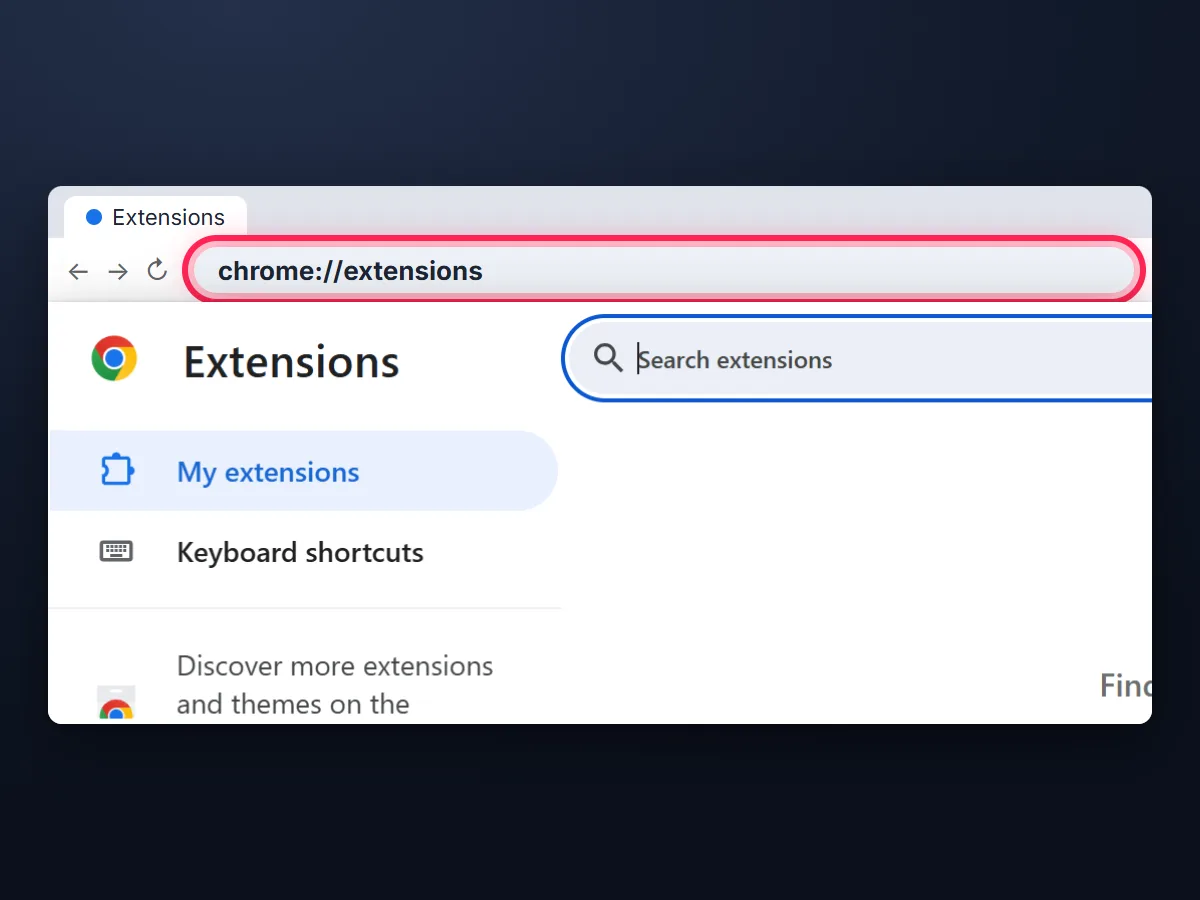
In Chrome’s address bar type
chrome://extensionsand press Enter. - 4
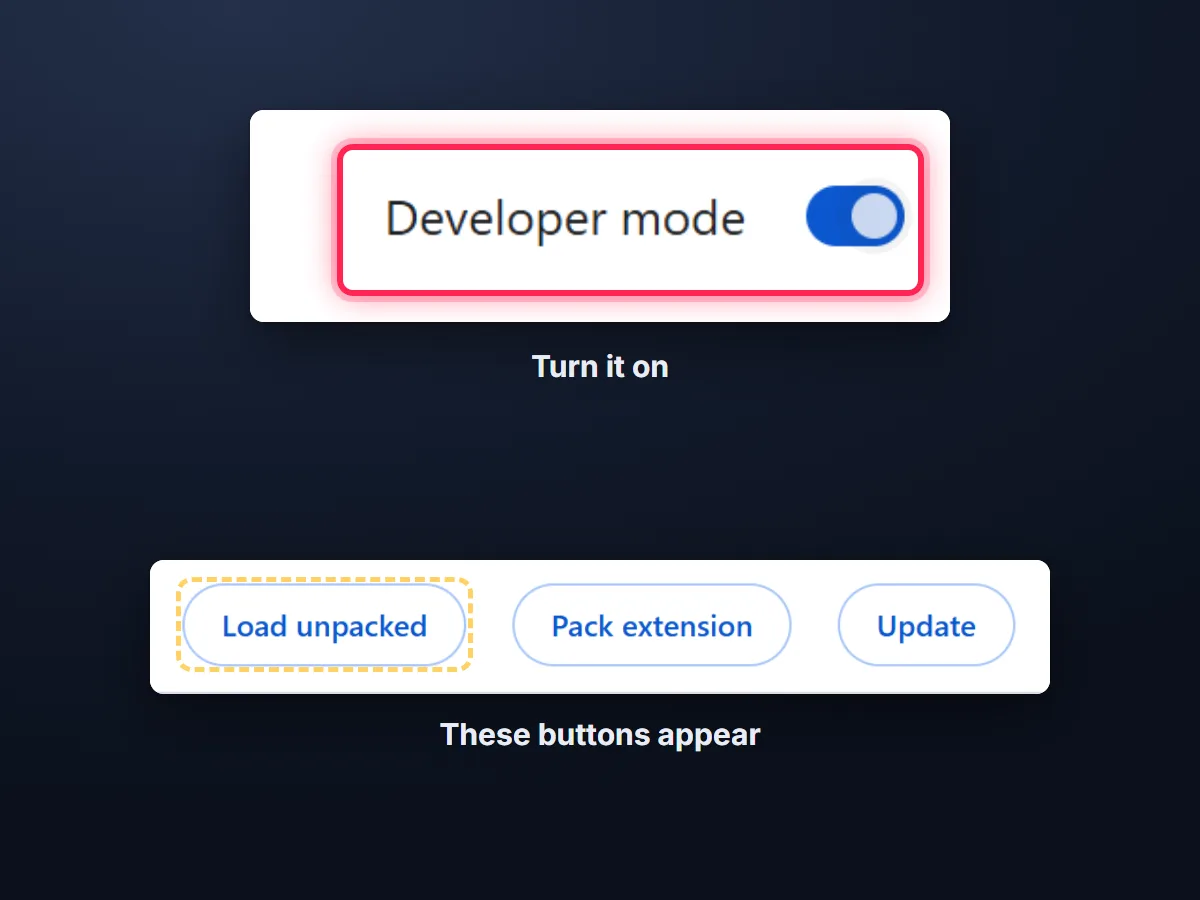
Turn on Developer mode
Switch on Developer mode in the top-right corner. Three new buttons appear on the left.
- 5
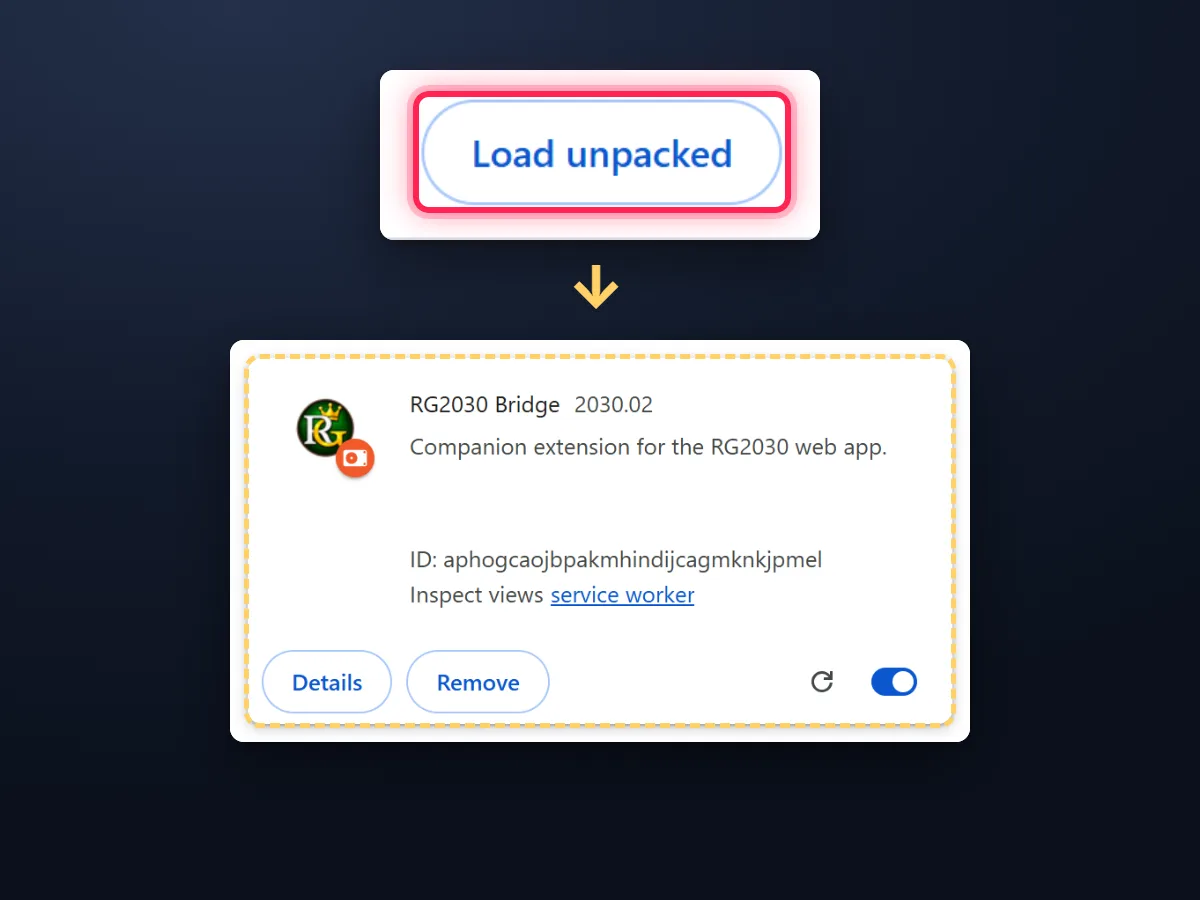
Click “Load unpacked”
Pick the unzipped folder, the one that contains
manifest.json. RG2030 Bridge appears in your extensions. - 6
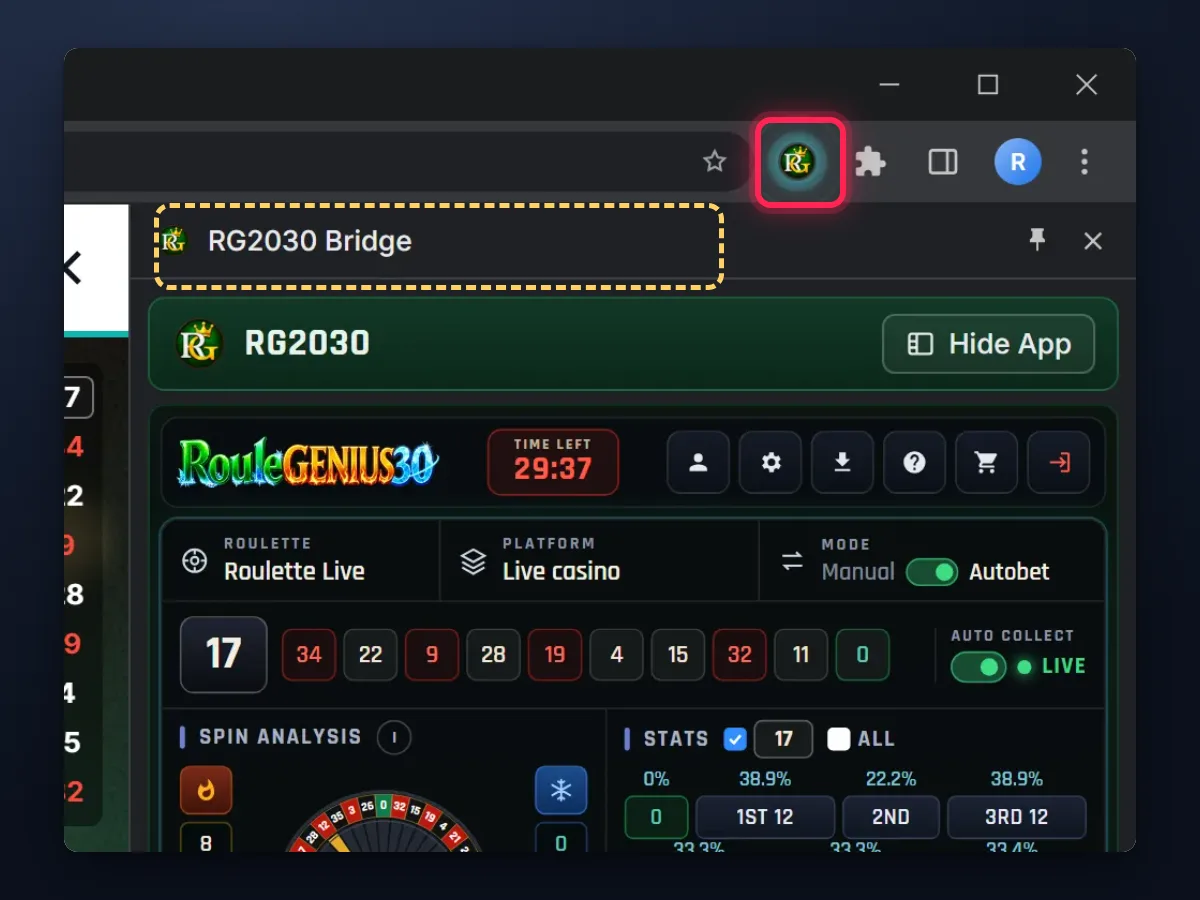
Open the side panel
Click the RG2030 icon in Chrome’s toolbar. Not there? Click the puzzle icon and pin RG2030 Bridge.
Connect it to your live roulette: 6 steps
- 1
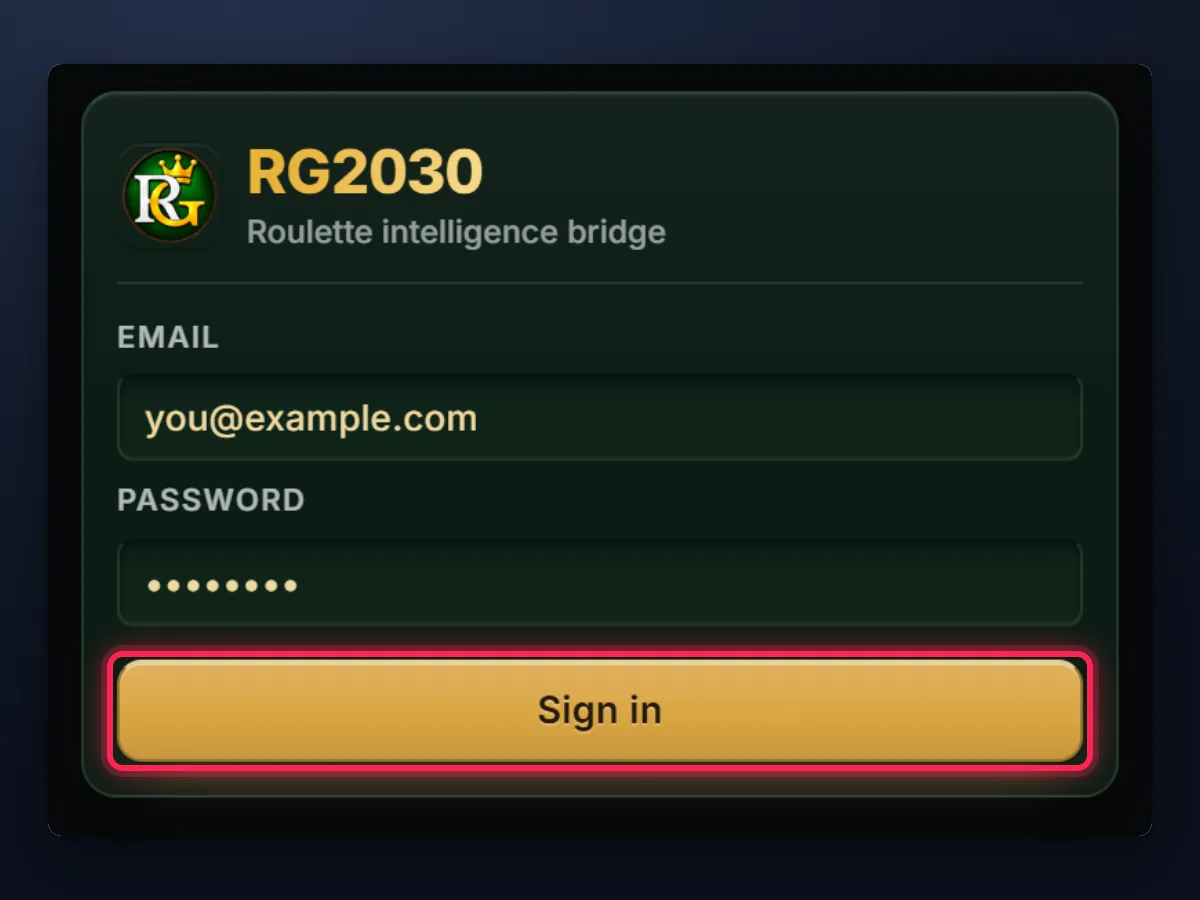
Sign in
Use the email and password of your RG2030 account. Never your casino login.
- 2
Open your live roulette
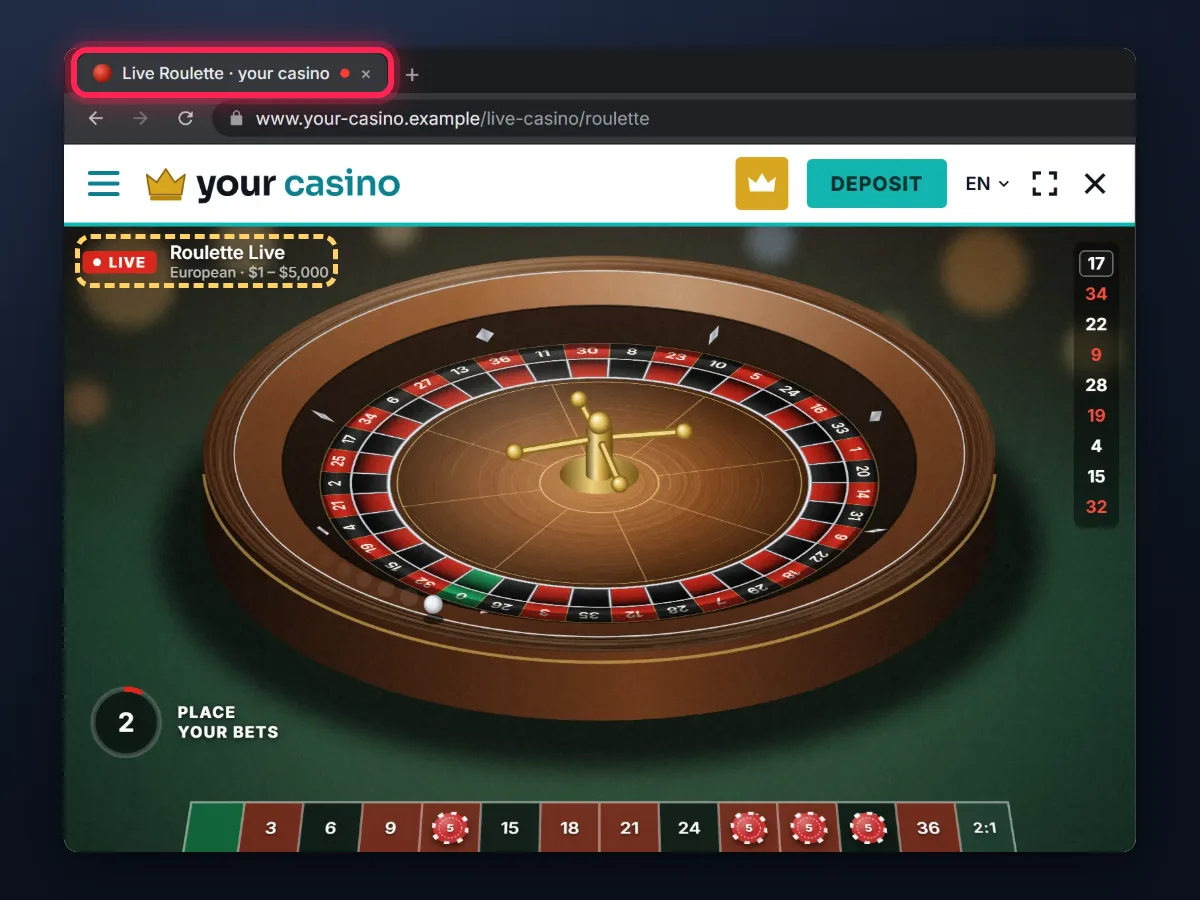
Open the table you want to follow in a normal Chrome tab and keep it open next to the panel.
- 3
Save the profile
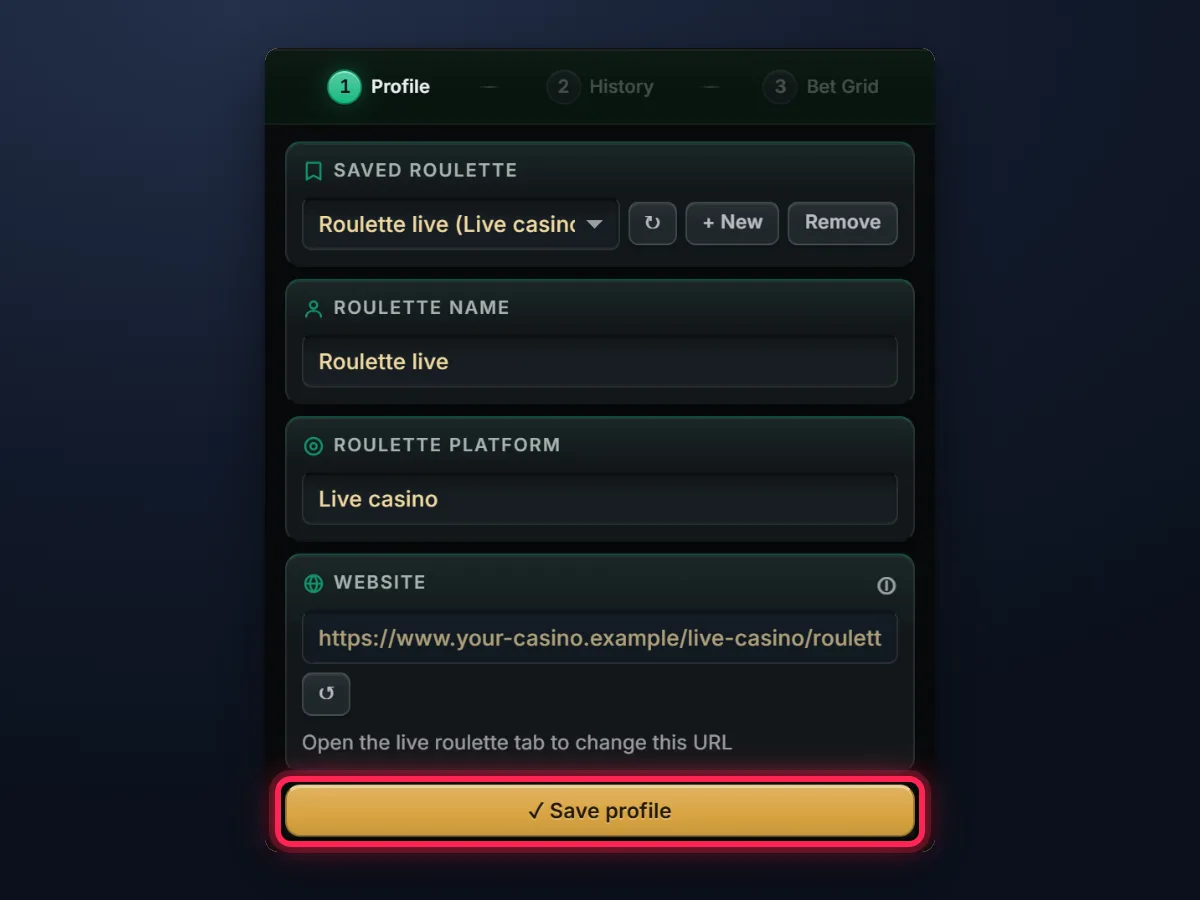
In 1 Profile write the Roulette Name and Roulette Platform (the website is read from the tab), then Save profile. You can save 1 to 5 tables, depending on your level.
- 4
Show it the last numbers
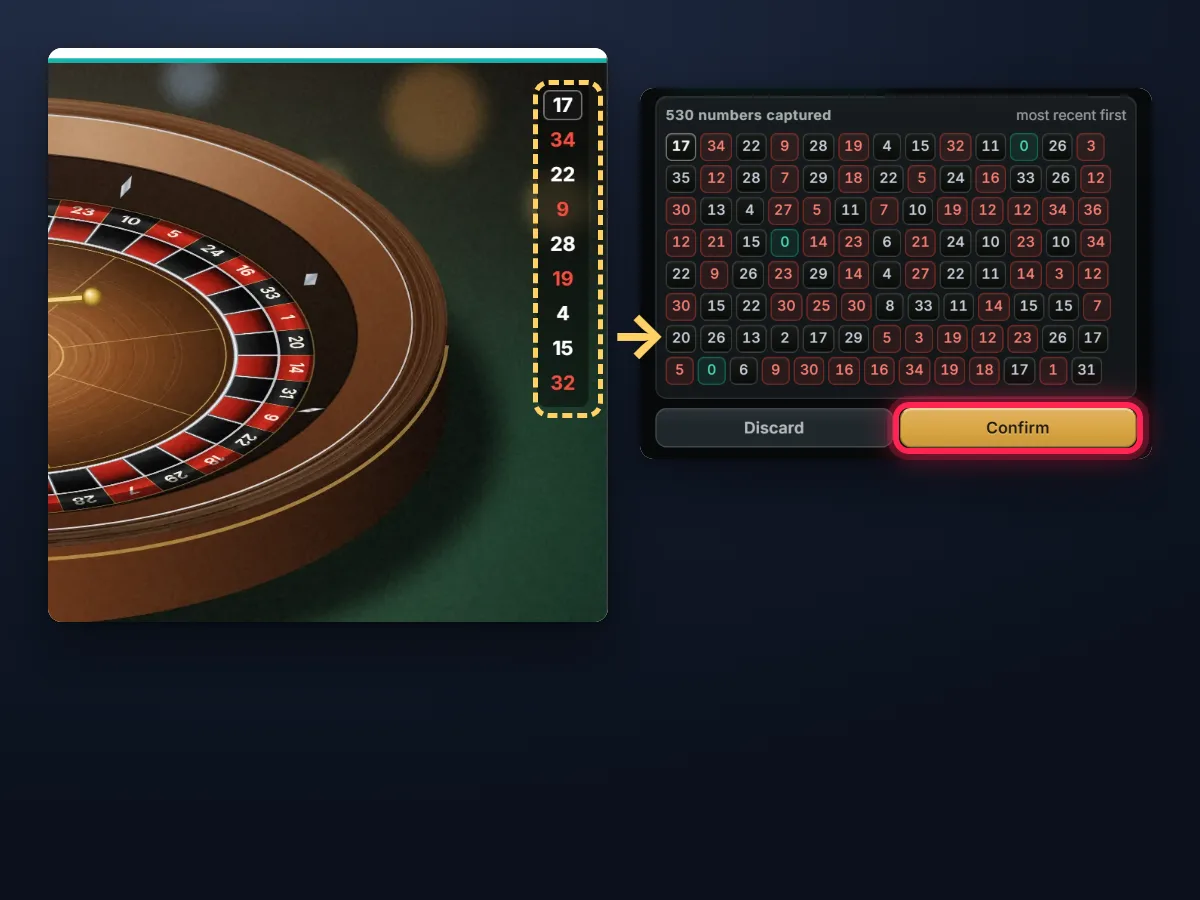
In 2 History click Select history area, then click the strip of recent results on the casino page. Check the numbers and press Confirm. RG2030 needs at least 500: if the casino shows fewer, open its full history and capture again, or paste them in Manual.
- 5
Map the bets Premium
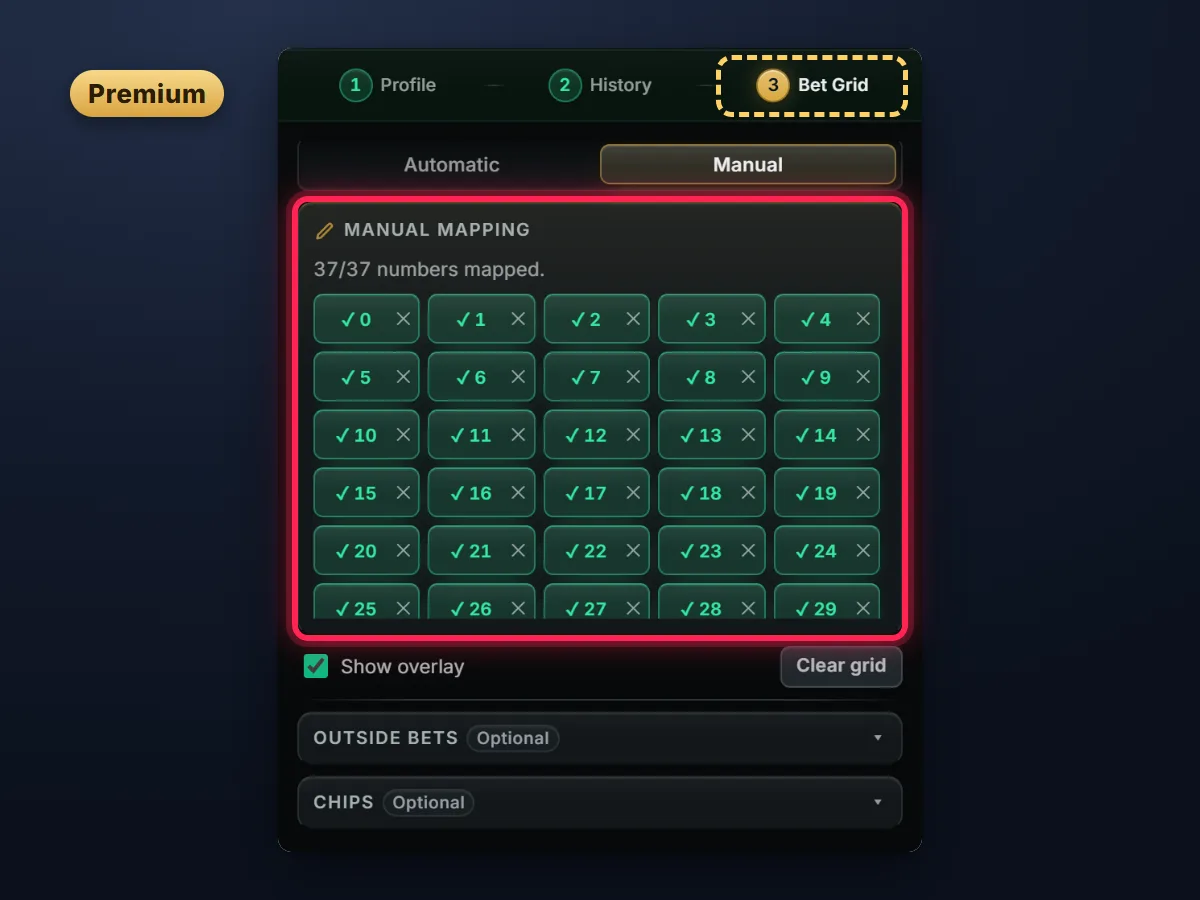
Only for AutoBet. In 3 Bet Grid click Activate debug, then Auto-detect bet buttons (or map the numbers by hand). Betting yourself? Skip this step.
- 6
Check that it says LIVE
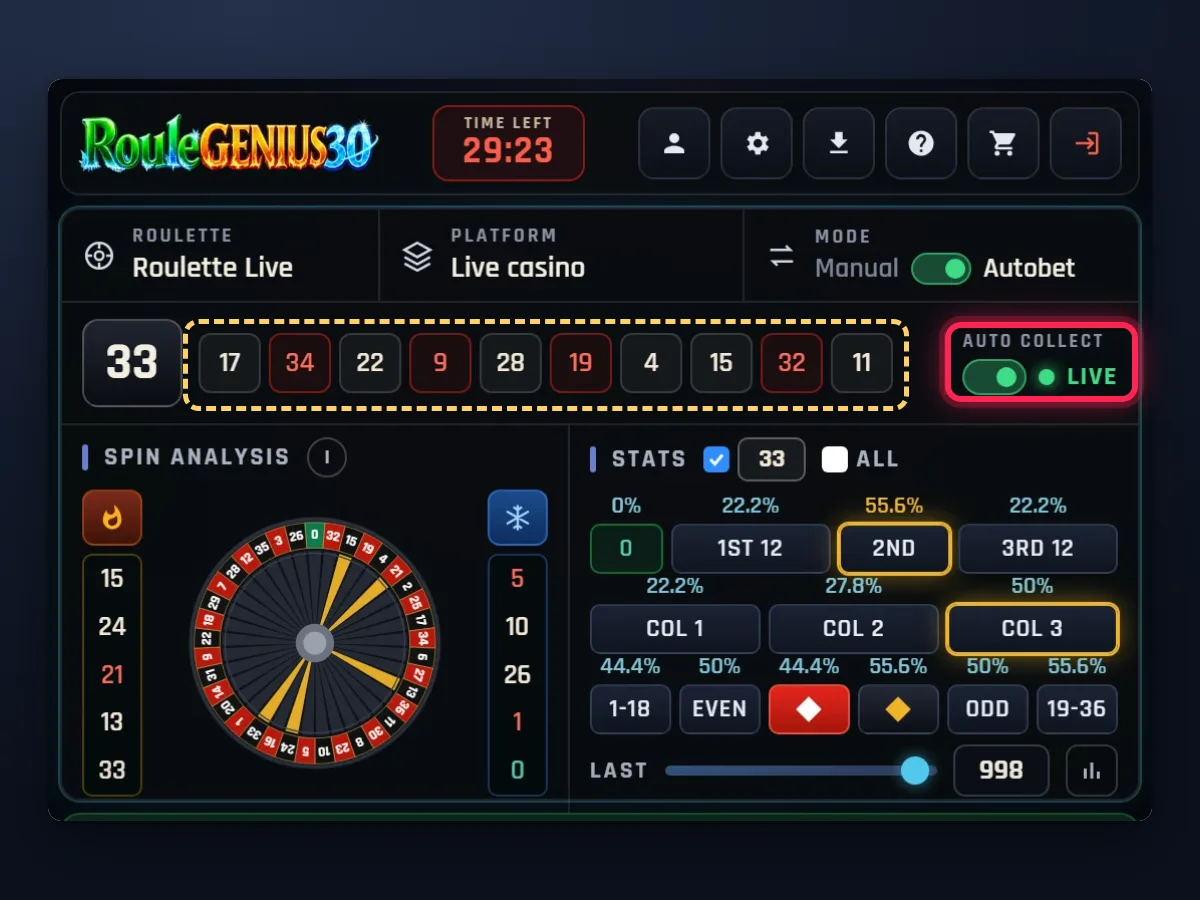
Open your RG2030 dashboard (Show App in the panel). It shows LIVE and the new numbers arrive by themselves. Your minutes run only while RG2030 gives you predictions.
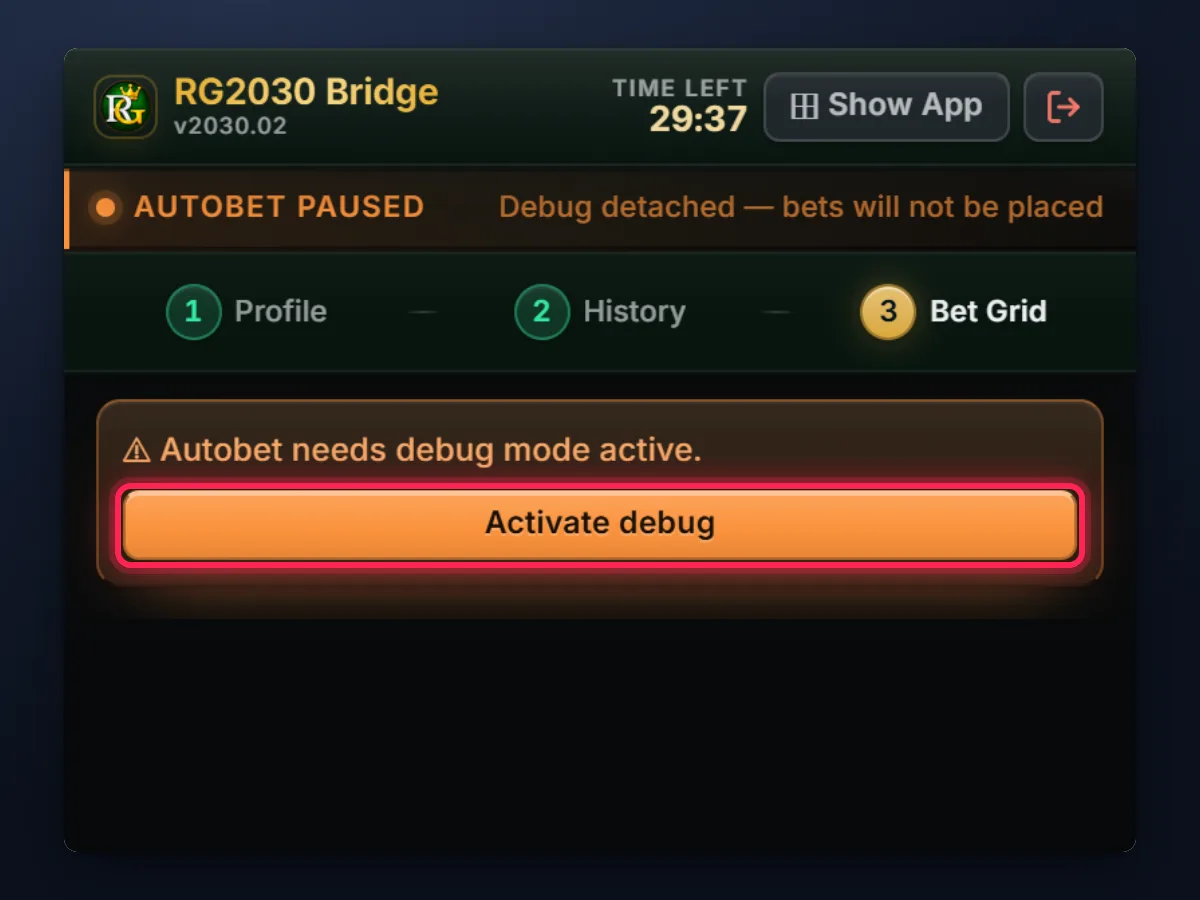
Turning AutoBet on
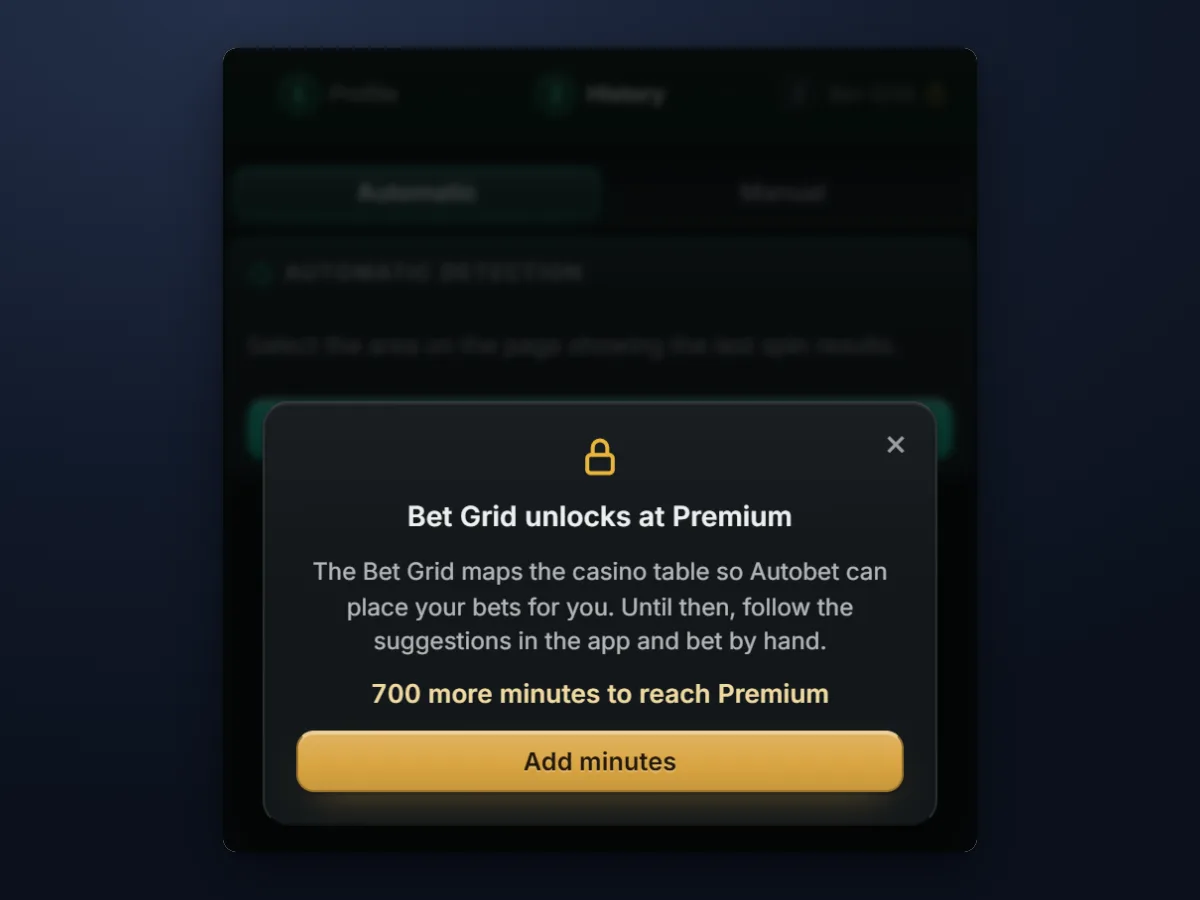
AutoBet is optional, starts at the Premium level (1,000 minutes bought in total) and is off by default: the panel shows AUTOBET DISABLED. Below Premium the Bet Grid step shows a lock and how many minutes are missing, and you follow the suggestions and bet by hand.
- 1
Activate debug mode
AutoBet clicks through Chrome’s debug mode. When the panel says Autobet needs debug mode active, click Activate debug. Chrome then shows a bar saying the extension is debugging the browser: that is normal.
- 2
Below Premium
The Bet Grid stays locked and tells you how many minutes are missing. Add minutes opens RG2030, and the step unlocks by itself once you reach Premium.
Permissions and privacy
The Bridge needs to run on the casino page to read the results and, for AutoBet, to click the bets. It connects to your RG2030 account only; it does not ask for or store your casino credentials. Your session and your saved profiles are stored in the browser and on your RG2030 account. You can remove the addon at any time from chrome://extensions.
Troubleshooting
Open the problem you see: each one tells you what to check and how to fix it.
Installing the Bridge
Chrome says the extension “may be unsafe” or is “not verified”
This is expected. The Bridge comes from our server, not from the Chrome Web Store, so Chrome’s Safety Check always flags it. It does not mean anything is wrong.
- Do not click Remove.
- If Chrome switched it off, open
chrome://extensionsand turn RG2030 Bridge back on.
“Load unpacked” says “Manifest file is missing or unreadable”
Chrome was given the wrong folder.
- Make sure you unzipped the file: choosing the
.zipitself does not work. - Open the unzipped folder: you must see fonts, images and the other files directly inside it.
- If inside it there is another rg2030-addon folder, choose that inner folder in Load unpacked.
I cannot find the RG2030 icon in Chrome’s toolbar
- Click the puzzle-piece icon on the right of the address bar.
- Click the pin next to RG2030 Bridge: the icon stays in the toolbar.
- Not in the list? Open
chrome://extensionsand check that RG2030 Bridge is there and switched on.
The addon disappeared after I moved or deleted its folder
Chrome runs the Bridge from the unzipped folder, so it stops when the folder is gone.
- Unzip the package again into a folder you will keep (for example Documents).
- Repeat Load unpacked and pick that folder.
The panel says “Update required”
Your copy of the Bridge is older than the one RG2030 now needs.
- Click Download new version.
- Unzip it into the same folder as before, replacing the old files.
- Click Reload RG2030 Bridge. The message goes away by itself.
Signing in and connecting
I cannot sign in to the Bridge
- Use the email and password of your RG2030 account, never your casino login.
- Confirm your email first: click the link we sent you when you registered.
- Forgot the password? Use Forgot password? on the RG2030 login page, then sign in to the Bridge with the new one.
- “This account is already in use on another device”: log out on the other computer, then try again.
The confirmation email did not arrive
- Look in your spam or promotions folder.
- Still nothing after a few minutes? Register again with the same email to receive a new link.
“Select history area” does not pick the numbers
- Keep the casino tab in front, with the strip of last results visible on screen.
- Click Select history area, move the mouse over the strip until only the numbers are highlighted, then click.
- If the casino does not allow it, switch to Manual: copy the history from the casino, paste it with the most recent number first and click Use these numbers.
“Only N of 500 numbers” in the History step
RG2030 needs at least 500 past numbers before it can start, and the casino page shows fewer.
- Open the casino’s full history or statistics view, so more numbers are on screen.
- Capture again with Select history area, or paste the numbers in Manual.
The dashboard does not show LIVE and no new numbers arrive
Check, in this order:
- You are signed in to the Bridge (the panel shows Time Left at the top).
- The live roulette tab is still open, on the same table as your profile.
- The profile is saved and selected in 1 Profile.
- The history is confirmed in 2 History. If the panel says History feed lost, the casino page changed: pick the history area again and press Confirm.
Numbers arrive but there are no statistics or predictions
- Statistics and predictions start after 500 numbers of that table.
- They also need minutes on your account: if the timer shows Top up, add minutes from the RG2030 dashboard.
- Your minutes run only while RG2030 is giving you predictions.
AutoBet
AutoBet does not place any bet
All of these must be true:
- Your account is at the Premium level or higher.
- Debug mode is active: the panel shows AUTOBET ACTIVE, not Debug detached.
- The Bet Grid is mapped for this table.
- AutoBet is switched on in the RG2030 dashboard (the Manual / Autobet switch).
- It was not stopped by your limits: if a stop-loss or take-profit was reached, the Bet Grid step says why.
Chrome shows a bar saying RG2030 Bridge “started debugging this browser”
That is normal while AutoBet is ready: Chrome’s debug mode is how the Bridge clicks the bets.
- Do not click Cancel on that bar, or AutoBet stops (the panel then says Debug detached).
- If you closed it by mistake, click Activate debug in the panel again.
The Bet Grid step is locked
The Bet Grid is only used by AutoBet, which starts at the Premium level (1,000 minutes bought in total). Click the step to see how many minutes are missing; Add minutes opens RG2030, and the step unlocks by itself once you reach Premium. Until then, follow the suggestions and bet by hand.
Frequently asked questions
Is the RG2030 Bridge free?
The addon is included with RG2030. You only pay for the minutes you use. See the pricing.
Do I need to install software on Windows or Mac?
No. Everything runs in your Chrome browser.
Does the Bridge see my casino password?
No. You sign in with your RG2030 account, and the Bridge works on the roulette window without asking for your casino login.
Can I use it on my phone?
The Bridge is a Chrome extension for computers, so it does not run on phones. RG2030 itself does: open it in your phone’s browser and tap each number on the RG2030 table.
Do I need the Bridge to use RG2030?
No. Without it you type each number on the RG2030 table yourself. The Bridge collects the numbers for you and, from the Premium level, can place the bets.
How do I update the Bridge?
Download the new version from the RG2030 dashboard (Install Addon), unzip it into the same folder replacing the old files, then click the reload icon of RG2030 Bridge in chrome://extensions. When an update is required, the panel tells you and shows the same steps.
Create your accountSee pricing
Play responsibly. You must be 18 or older (or the legal gambling age in your country). Gambling involves risk: never bet money you cannot afford to lose. No software can guarantee results. Automated betting may be restricted by the terms of some casinos, and it is your responsibility to check and follow the terms of the site you play on and the laws of your country.