The complete RG2030 Bridge guide for new users: sign in, Show App, the 3 setup steps (Profile, History, Bet Grid) and Autobet, with a picture for every button.

RG2030 Bridge User Guide: Every Button, Step by Step
This guide is for you if you have just bought RG2030 minutes and installed the RG2030 Bridge. It shows every button of the Bridge, one by one, in the order you use them. Every picture comes from a real session. The red numbers in each picture match the numbers in the text.
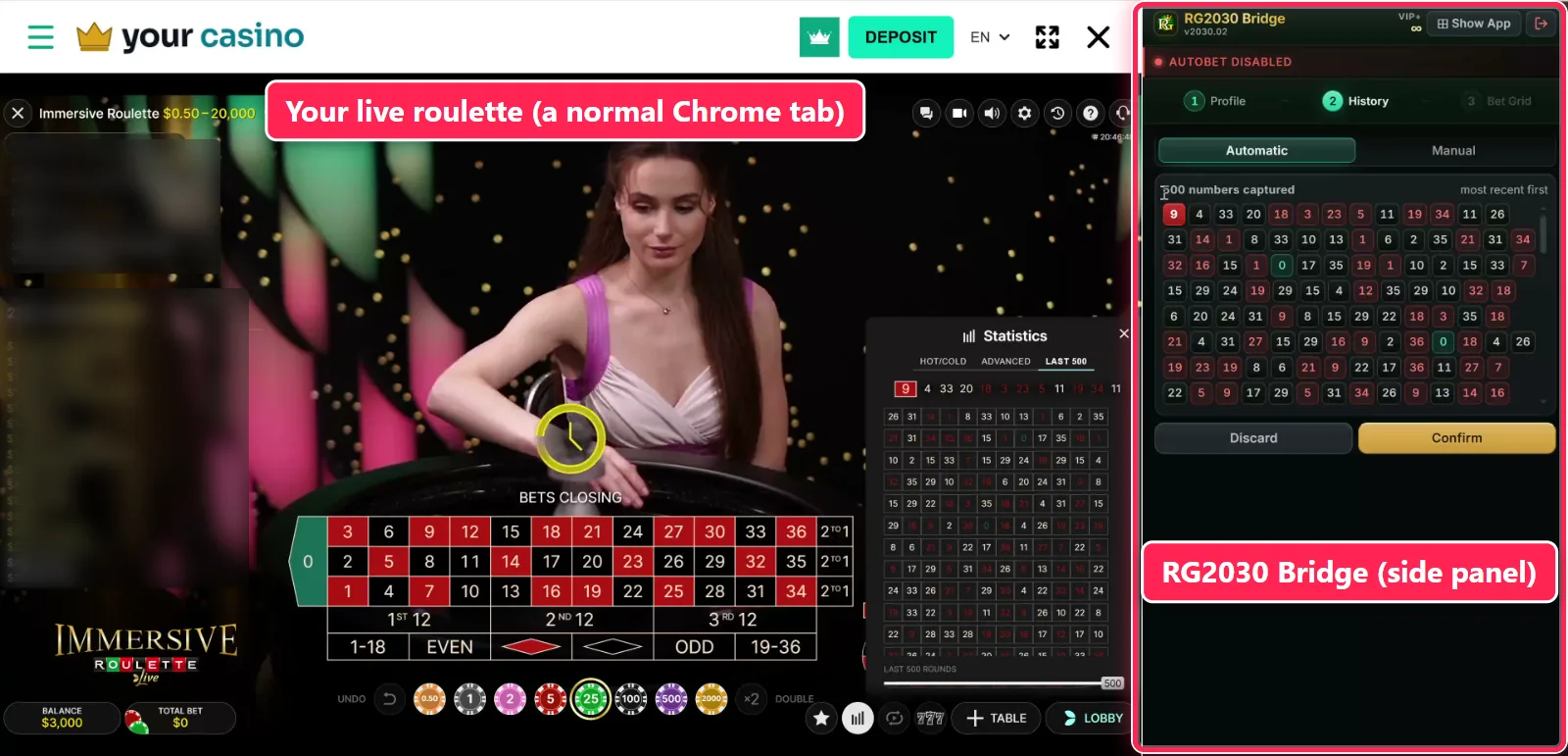
The Bridge is not installed yet? Follow the installation guide first (about 2 minutes), then come back here.
- 1. What the Bridge is
- 2. The screen
- 3. Sign in
- 4. Show App
- 5. Step 1: Profile
- 6. Step 2: History
- 7. Step 3: Bet Grid
- 8. Switch Autobet on
- 9. Every day
- 10. Problems and fixes
1What the RG2030 Bridge is
The RG2030 Bridge is a small addon for Google Chrome on a computer (Windows or Mac). It opens in a panel on the right side of Chrome, next to your live roulette. Its job is simple: it connects the roulette table to RG2030. It reads every new number from the casino page, and from the Premium Pack it can also place the bets for you.
One account for everything
Sign in with the same email and password you use for RG2030. Your minutes and your Pack are the same in RG2030 and in the Bridge. You do not need a second licence.
RG2030 is inside the Bridge
Click Show App and the full RG2030 dashboard opens inside the panel, next to the table. You do not need a second window.
You set up each roulette table in 3 steps, always in this order:
1Profile
Tell the Bridge which roulette you play and where it is (its web address).
2History
Give RG2030 the last 500 numbers of that table. After that, new numbers arrive by themselves.
3Bet Grid Premium & up
Show the Bridge where the numbers, bets and chips are on the table, so Autobet can click them for you.
You do the 3 steps once for each table. Next time you only choose the table in a list, and the Bridge connects again by itself.
Before you start
- The RG2030 Bridge is installed in Chrome (installation guide).
- You have an RG2030 account with minutes (see the Packs).
- Your live roulette is open in a normal Chrome tab: the table itself, not the casino lobby.
2The Bridge screen at a glance
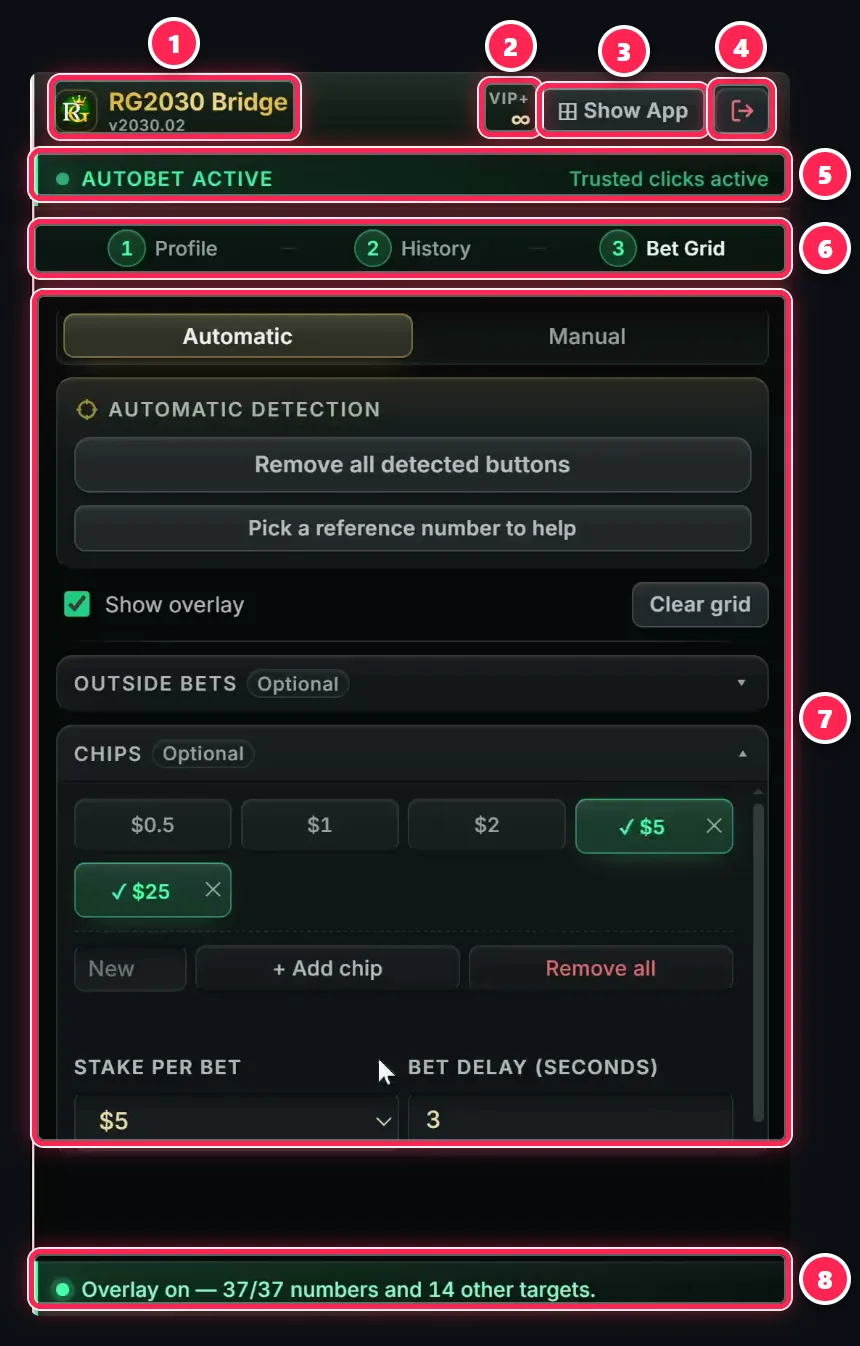
- RG2030 Bridge and the version, for example
v2030.02. - Time Left: the play minutes on your account. It only moves while RG2030 gives you predictions. VIP+ shows
∞(unlimited). - Show App: opens RG2030 inside the panel.
- Sign out. It signs you out everywhere (RG2030, the Bridge, other devices) and does not ask first.
- Autobet bar: red
AUTOBET DISABLED, amberAUTOBET PAUSEDor greenAUTOBET ACTIVE. Green means the Bridge is allowed to click on the casino page. You switch Autobet itself on in RG2030 (part 8). - The 3 steps. A green number means the step is done. A dim step cannot be opened yet: finish the step before it.
- The work area of the step you opened.
- Message bar: what just happened and what to do next. Green = done, amber = advice, red = problem. Read it after every click.
3Sign in
- Open your live roulette in a normal Chrome tab.
- Click the RG2030 Bridge icon in the Chrome toolbar, top right. Do not see it? Click the puzzle icon, then the pin next to RG2030 Bridge.
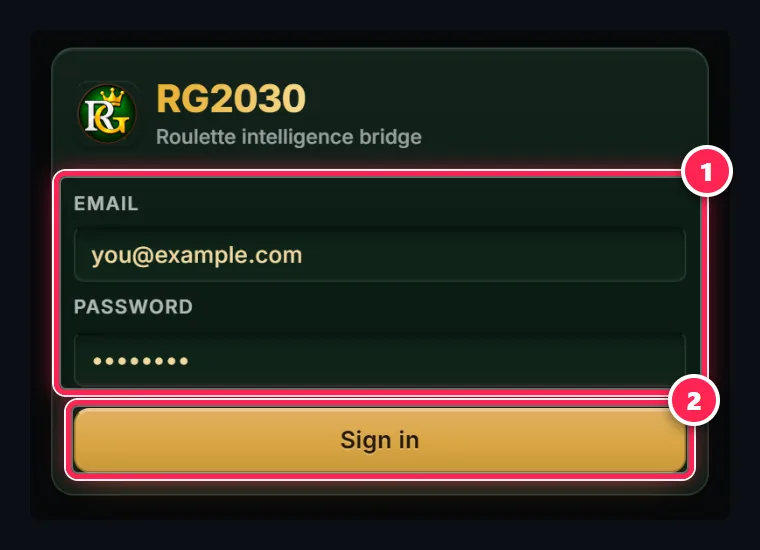
- 1Type your RG2030 email and password. Never your casino login.
- 2Click Sign in. Use the button: the Enter key does not sign in.
Already signed in to RG2030 in Chrome? Then the Bridge signs you in by itself.
| If you see this message | What to do |
|---|---|
| Email or password not recognized. | Check them. They are the same as in RG2030. |
| Please confirm your email first… | Open the email we sent you and click the link. Look in the spam folder too. |
| This account is already in use on another device. | Close RG2030 on the other device, then sign in again. |
| Too many attempts. Please wait a minute and try again. | Wait one minute. |
4Show App: RG2030 inside the Bridge
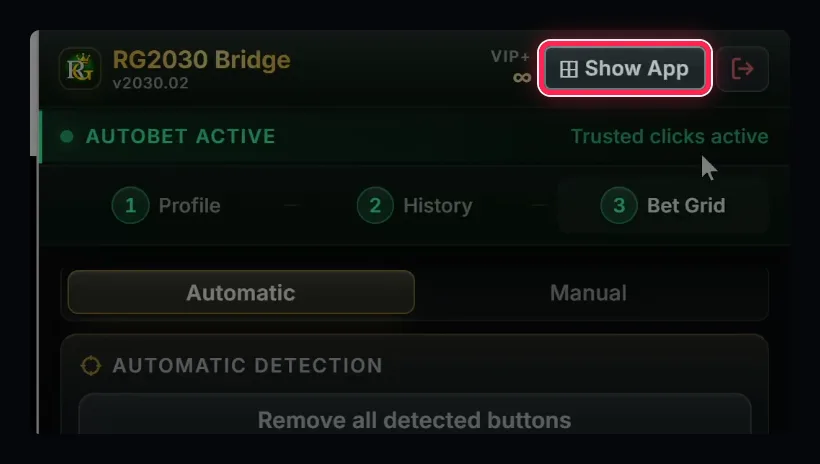
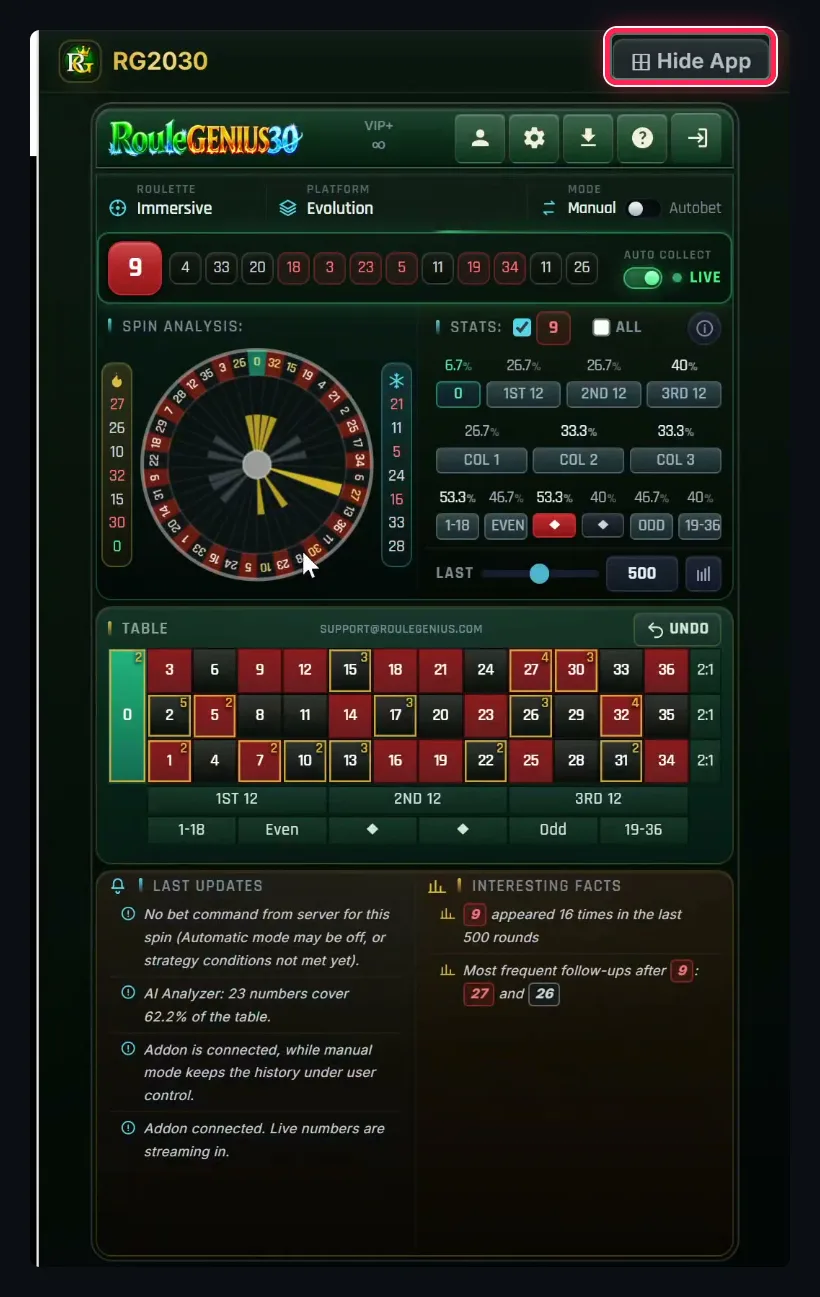
Click Show App at the top right. The RG2030 dashboard opens inside the panel, next to the table, already signed in. It works exactly like RG2030 in a normal tab: statistics, predictions, Settings and the Autobet switch. Click Hide App to go back to the 3 steps. RG2030 keeps running while it is hidden.
Every part of the dashboard
The RG2030 dashboard has its own guide: RG2030 Dashboard User Guide.
5Step 1 · Profile: which roulette you play
What it does. A profile tells the Bridge which roulette table you play and its web address. Each table gets its own profile, and RG2030 keeps the numbers of each table apart. Profiles per Pack: Base 1 · Pro 2 · Premium 3 · VIP and VIP+ 5.
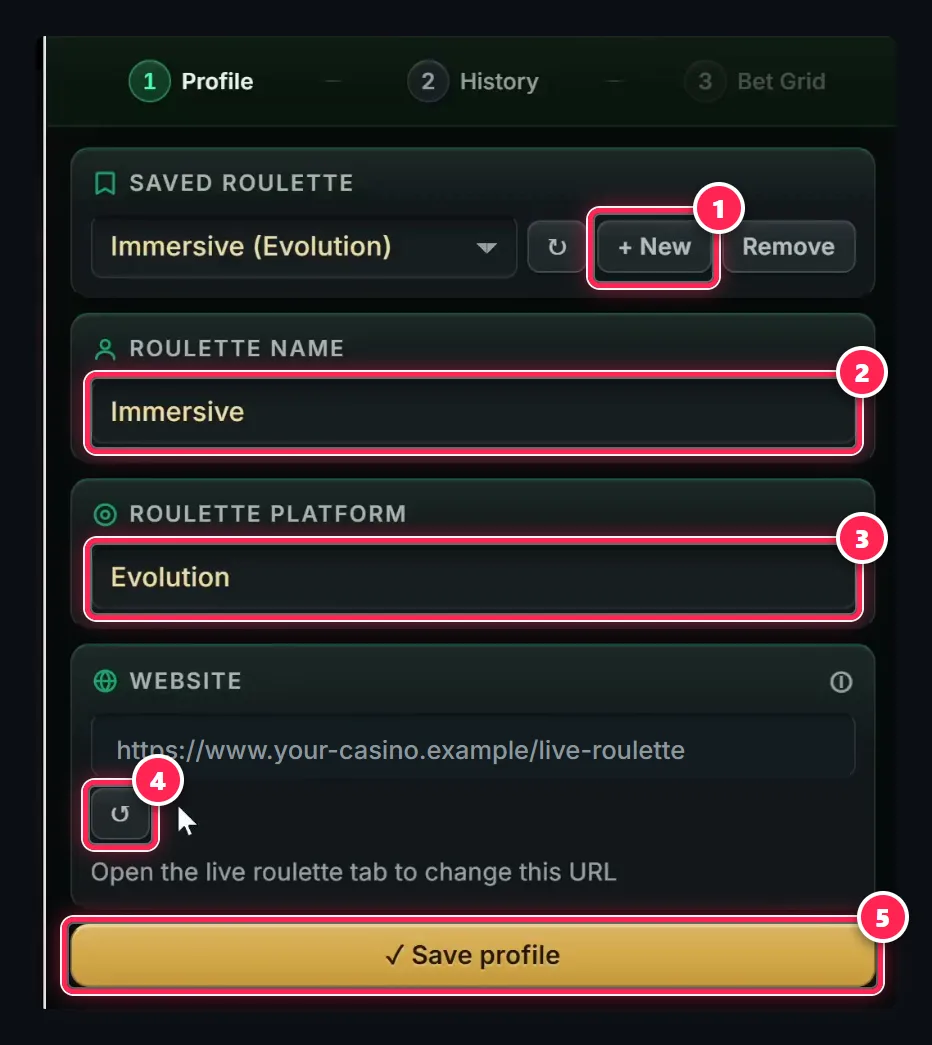
First, open the roulette table in Chrome and click on its tab, so the table is the tab in front. Then, in the Bridge:
- Click + New.
- Roulette Name: type the name of the table as the casino shows it, for example Immersive Roulette.
- Roulette Platform: type the game provider, for example Evolution or Pragmatic Play. You find it on the table or in the casino lobby.
- Website: click ↺. The Bridge copies the address of the table tab and the message bar says URL captured. You cannot type in this box.
- Click ✓ Save profile. The message bar says Saved “Immersive roulette”. The 1 turns green and the Bridge opens Step 2.
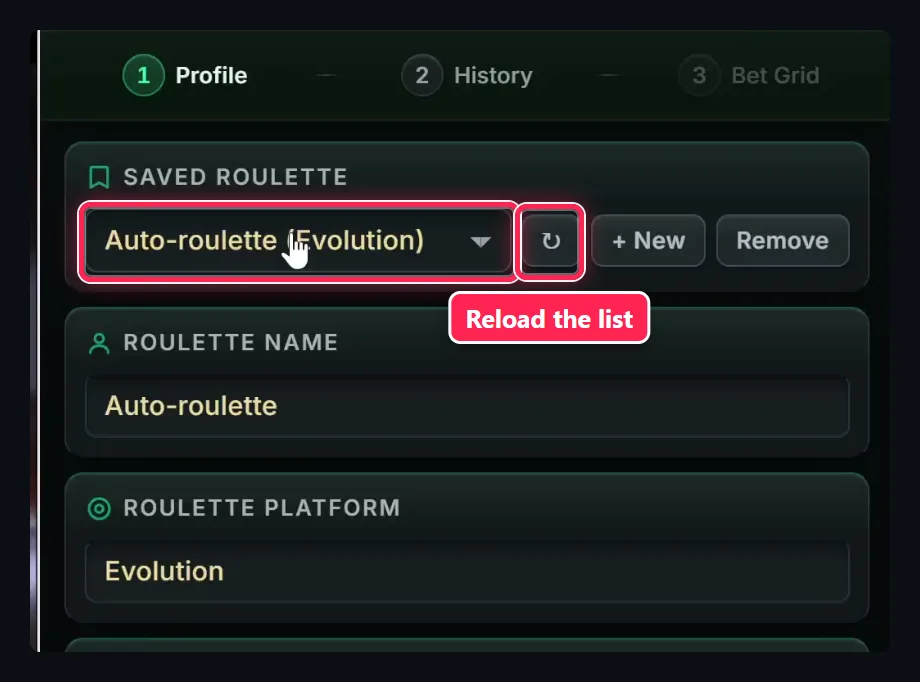
Next time, open the same table and choose it in Saved Roulette. Done.
- ↻ next to the list reloads your profiles, for example after you added one in RG2030 (My Account → Profiles).
- Remove deletes the profile and its numbers. Chrome asks you to confirm.
- The name is the profile: if you change the name and save, you get a second profile.
Two arrows look alike
↺ under Website copies the address of the tab in front. ↻ next to the list reloads your profiles. If the message bar says URL does not match the active tab, click on the table tab, click ↺ again, then ✓ Save profile.
6Step 2 · History: the last 500 numbers
What it does. RG2030 needs the last 500 numbers of this table before it can show statistics and predictions. The Bridge reads them from the casino page in one click. After you confirm them, every new number goes to RG2030 by itself. Your play minutes do not run while you collect these first 500 numbers.
There are two ways: Automatic (use this one) and Manual (only if Automatic does not work on your casino).
Automatic: 5 clicks
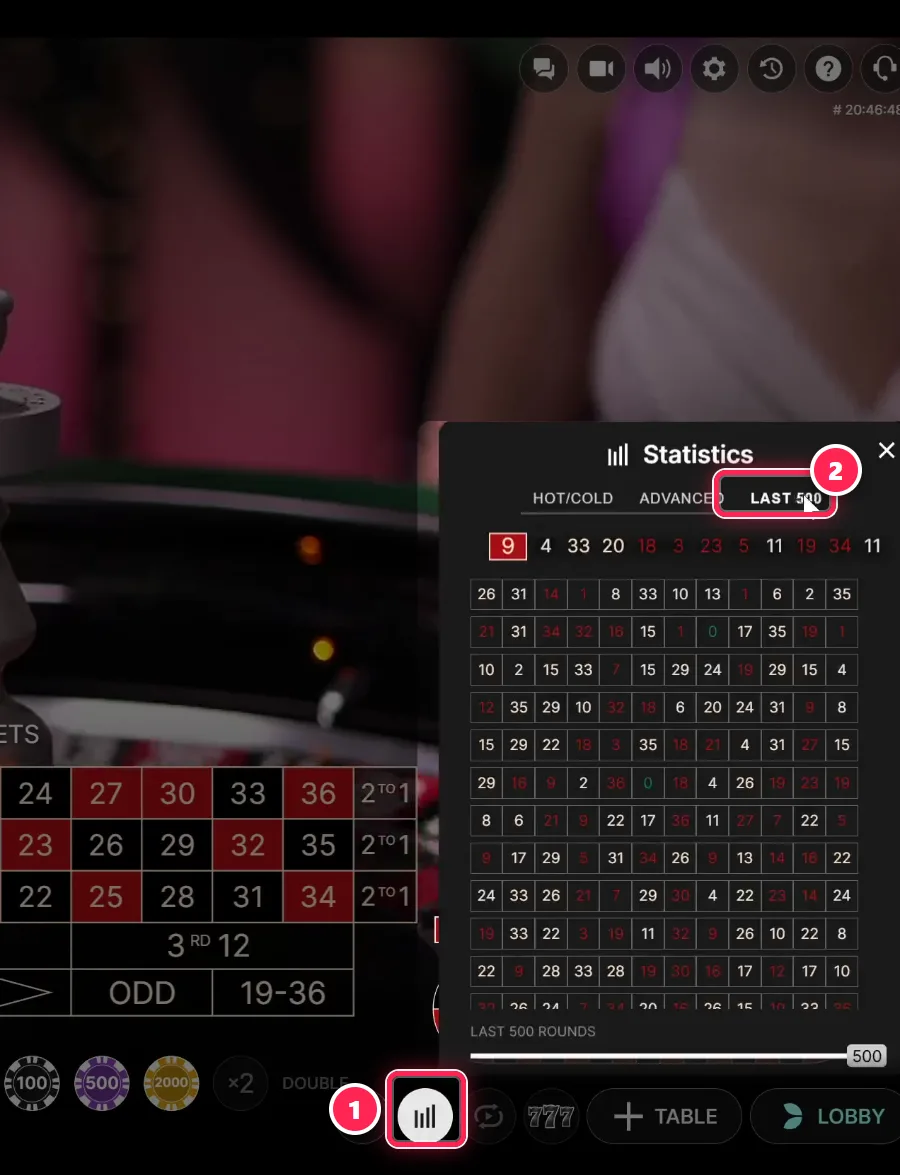
- On the casino page, open the full history of the table. Most live tables have a 1Statistics button. Open it and choose the tab with the last 500 results 2(here
LAST 500; the name changes from casino to casino). The Bridge can only read the numbers you can see on the page.
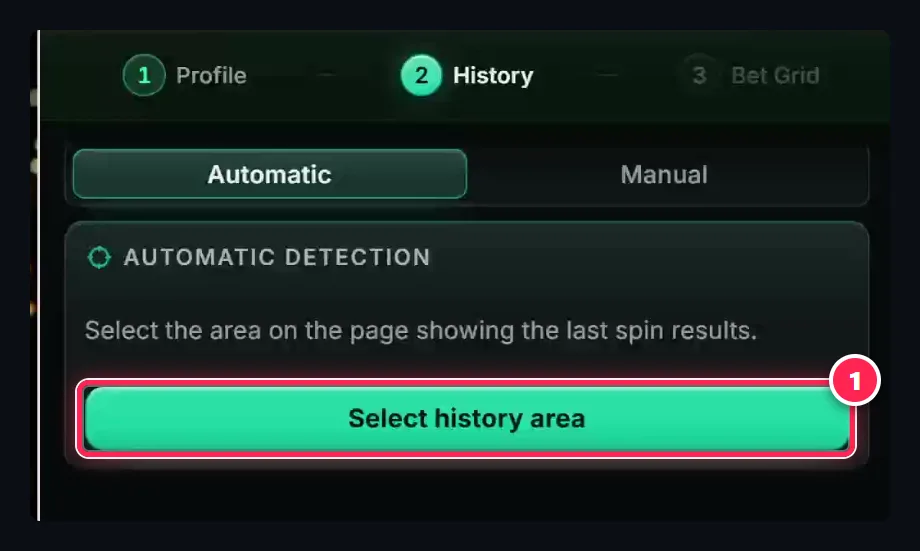
- In the Bridge, click Select history area.
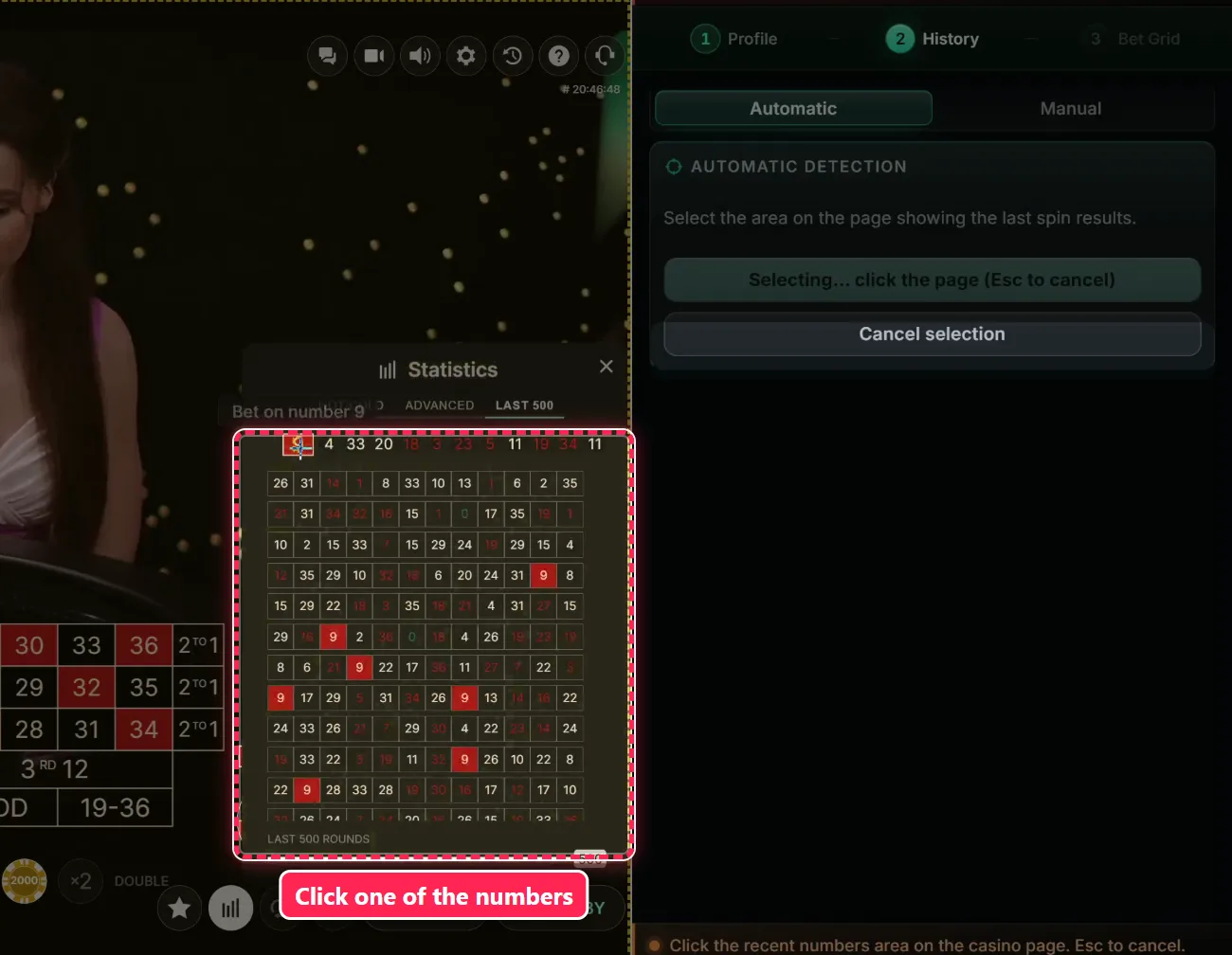
- Move the mouse onto the numbers on the casino page. A yellow dashed frame follows the mouse. Click one of the numbers. The Bridge reads the whole list, not just that number. (Esc or Cancel selection stops it.)
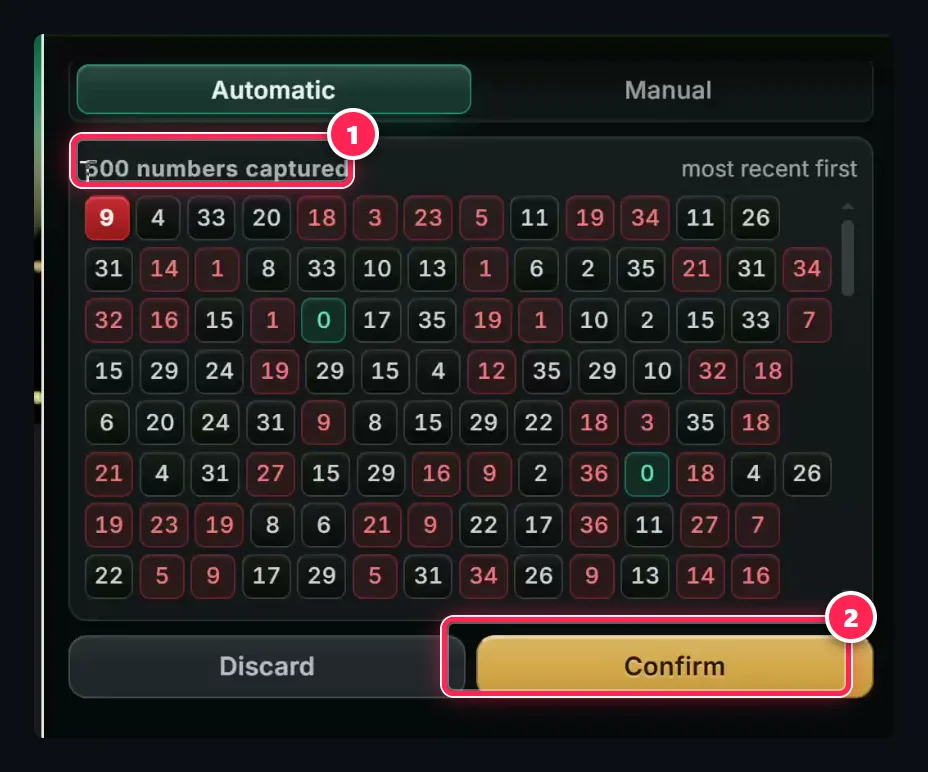
- 1Check the result: 500 numbers captured, most recent first. The first number must be the last result of the table. Then click 2Confirm.
- The message bar says History confirmed — 1000 numbers tracked. (your number may differ) and the 2 turns green. With the Premium Pack the Bridge now opens Step 3.
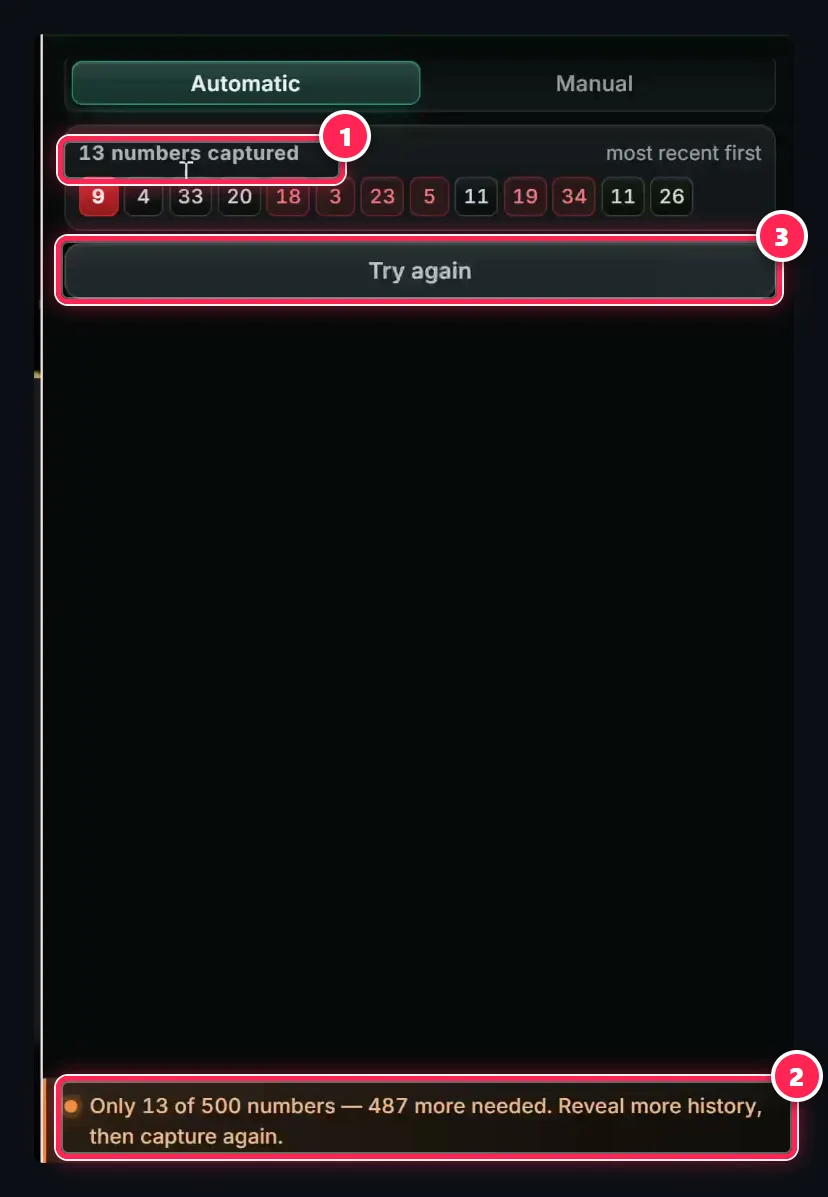
Only a few numbers?
1Here the Bridge found only 13 numbers. The message bar 2says Only 13 of 500 numbers — 487 more needed. Reveal more history, then capture again.
This happens when the casino shows only a short list, for example the last 13 results at the top of the table. 3Click Try again, open the full history (point 1) and select again.
If the message bar says The selected area does not contain roulette numbers., this casino cannot be read automatically. Use Manual.
Manual: paste the numbers
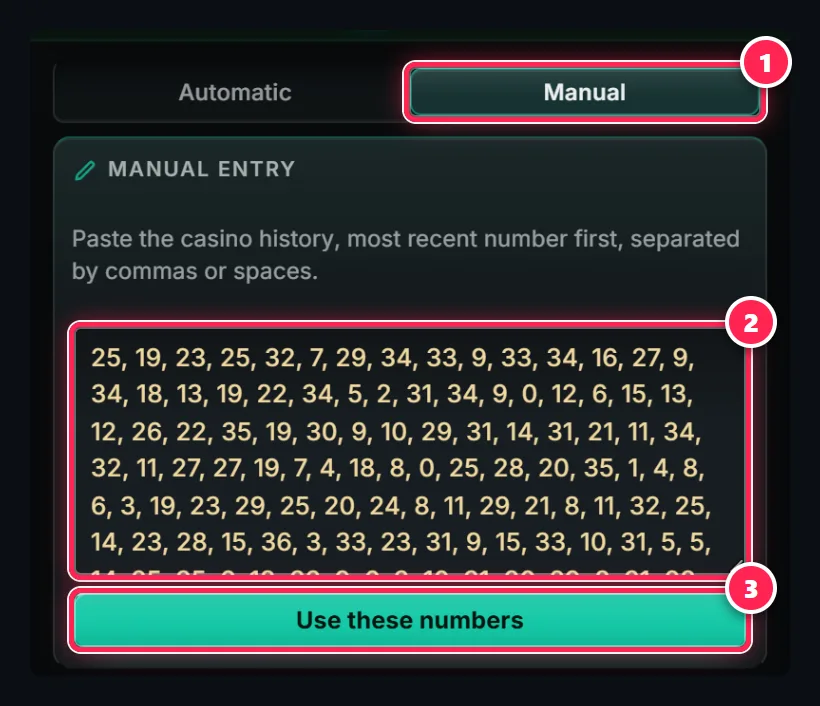
- Click Manual.
- Paste or type the history, most recent number first, separated by commas or spaces. At least 500 numbers. In Manual mode you can copy text from the casino page, even where the casino normally blocks it.
- Click Use these numbers, check them, then click Confirm.
Important
With Manual, the Bridge cannot see the new numbers by itself. After each spin, click the number on the RG2030 table (Show App). Autobet needs the Automatic history.
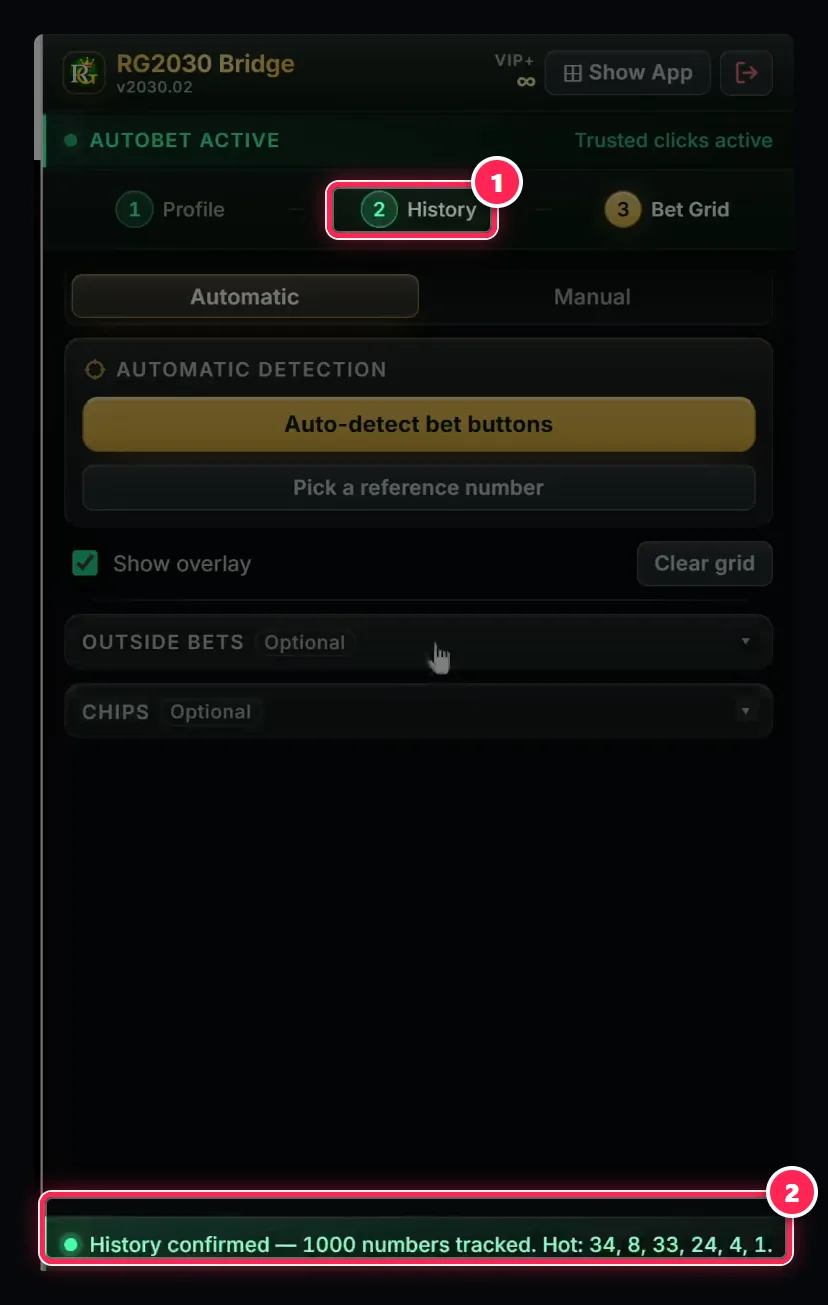
1When Step 2 is done, its number is green. 2The message bar shows how many numbers RG2030 follows and the hot numbers.
From now on you do not type any number: each new result goes to RG2030 a moment after it appears on the casino page.
7Step 3 · Bet Grid: where to click Premium & up
What it does. The Bet Grid teaches the Bridge where each number, outside bet and chip is on the casino table. Autobet needs it to place the bets for you. If you always bet by hand, you can skip this step.
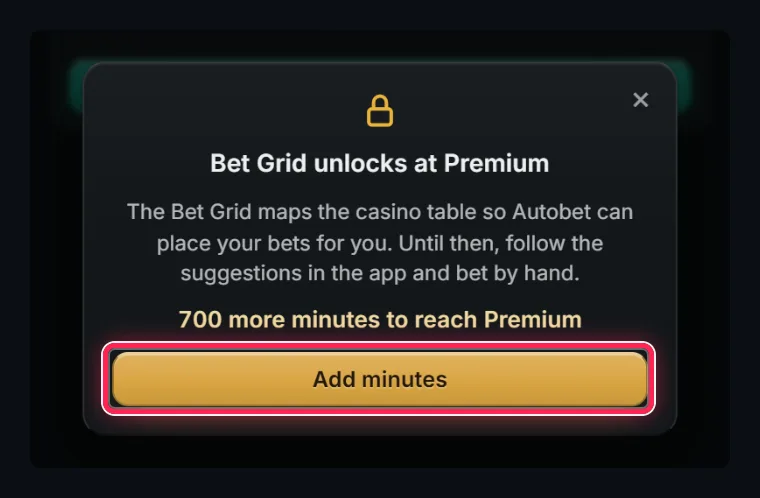
Below the Premium Pack, a click on 3 Bet Grid shows Bet Grid unlocks at Premium and how many minutes you still need. Add minutes opens RG2030, where you can top up. Until then, follow the suggestions of RG2030 and bet by hand.
Debug mode: the bar at the top of Chrome

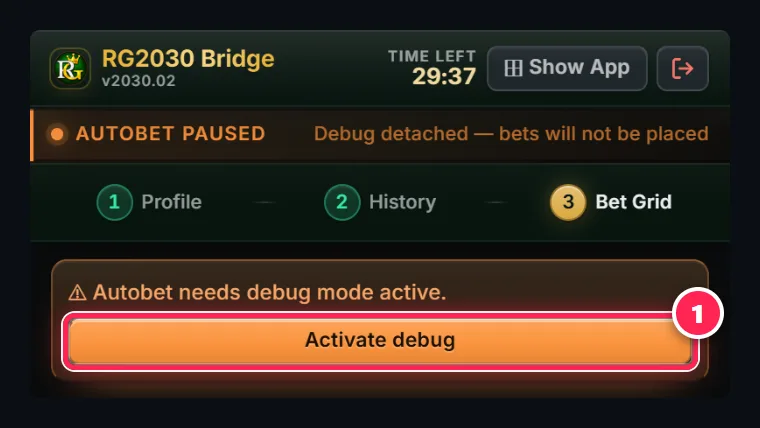
When you open Step 3, Chrome shows a bar at the top: “RG2030 Bridge” started debugging this browser. This is normal. It lets the Bridge click on the casino page like a real mouse, and the Autobet bar turns green: AUTOBET ACTIVE.
Never press Cancel on that bar: the Bridge could not place bets any more. Pressed it by mistake? The Bridge shows ⚠ Autobet needs debug mode active. 1Click Activate debug.
Automatic detection: the fast way
Before you click: show the classic table
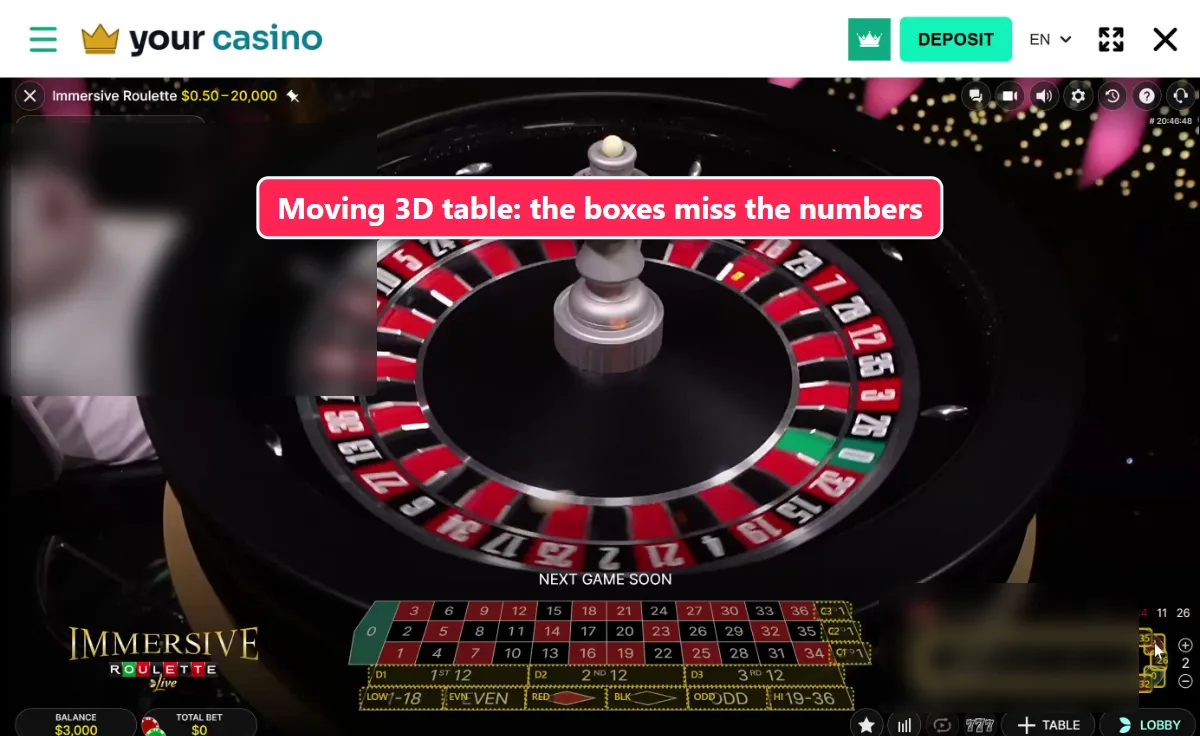
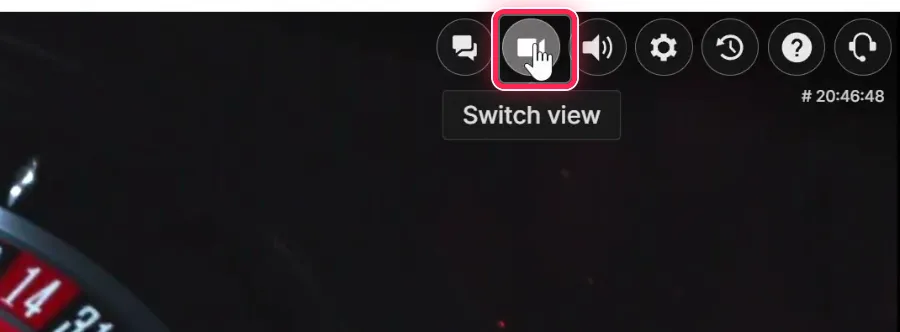
The betting table must be fully visible and not moving. On 3D or “immersive” views the table moves, and the boxes land in the wrong place (picture below). Most live tables have a button to change the view.
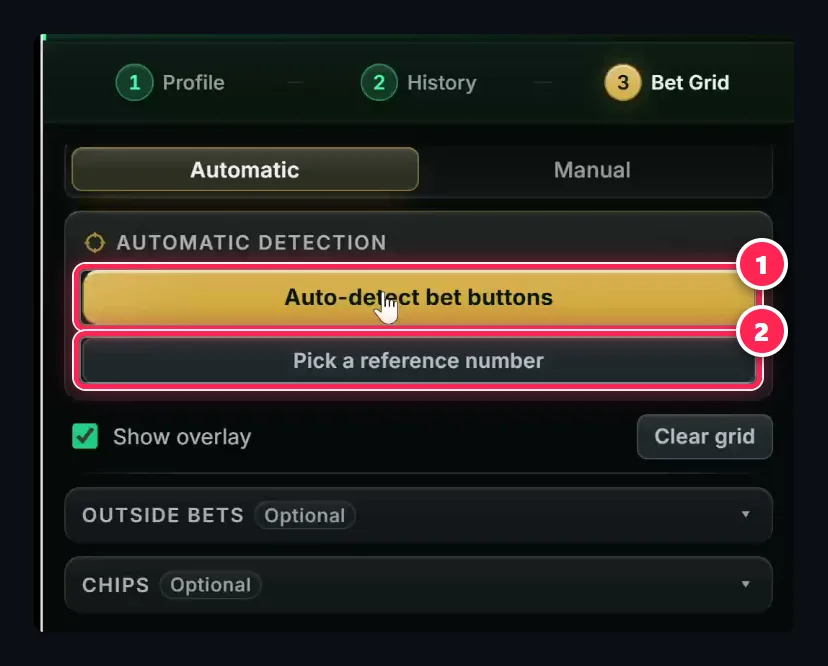
- 1Click Auto-detect bet buttons and wait a few seconds.
- Nothing found? 2Click Pick a reference number, then click one number on the casino table. The Bridge then searches around it.
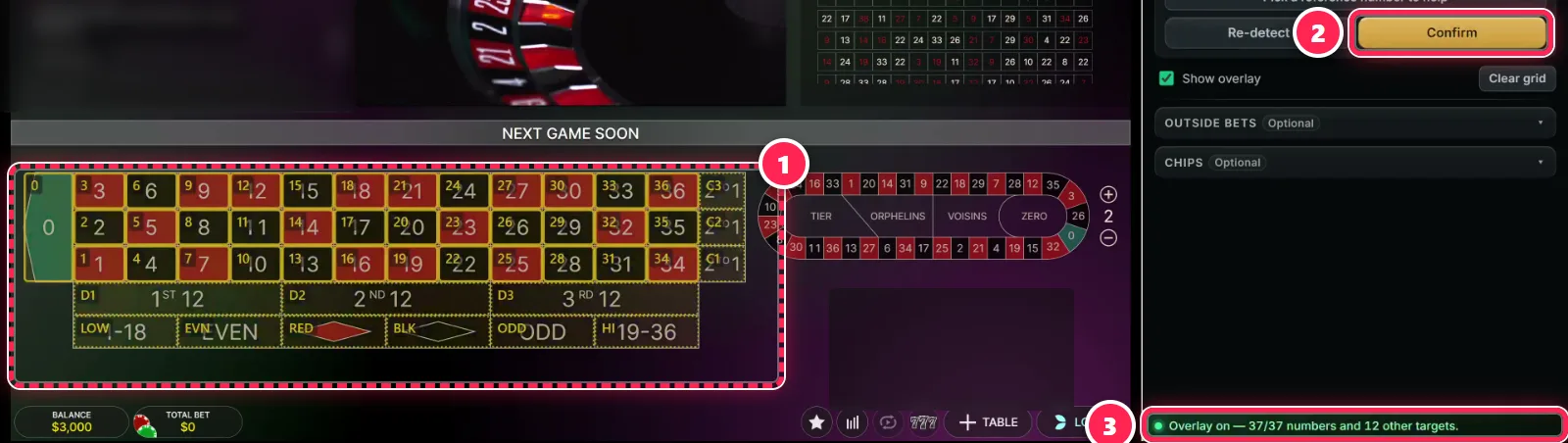
- 1Yellow boxes appear on every number and bet the Bridge found. 3The message bar says Overlay on — 37/37 numbers and 12 other targets. Check that each box sits on its number.
- 2Click Confirm. The message bar says Bet grid saved (37/37) — this roulette reconnects automatically. The 3 turns green.
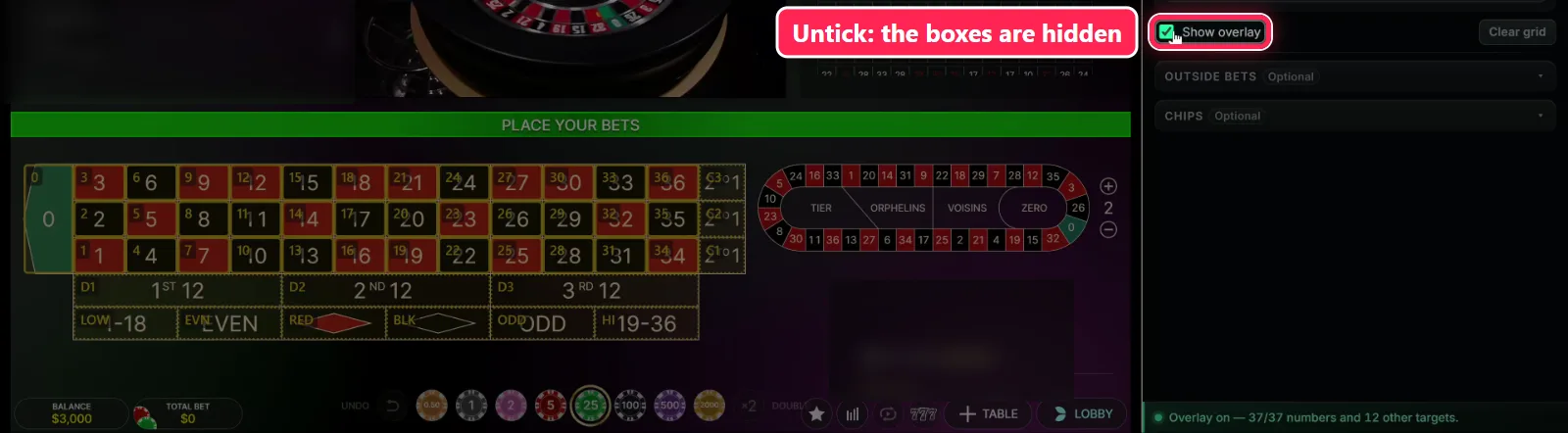
- Show overlay: untick it to hide the yellow boxes, tick it to see them again. The grid stays saved.
- Boxes in the wrong place? After a detection, the first button is called Remove all detected buttons. It deletes the whole grid at once, without asking. Fix the view, then click Auto-detect bet buttons again.
- Clear grid also deletes the whole grid (numbers, bets and chip places) without asking, and switches Autobet off.
Manual mapping: one number at a time
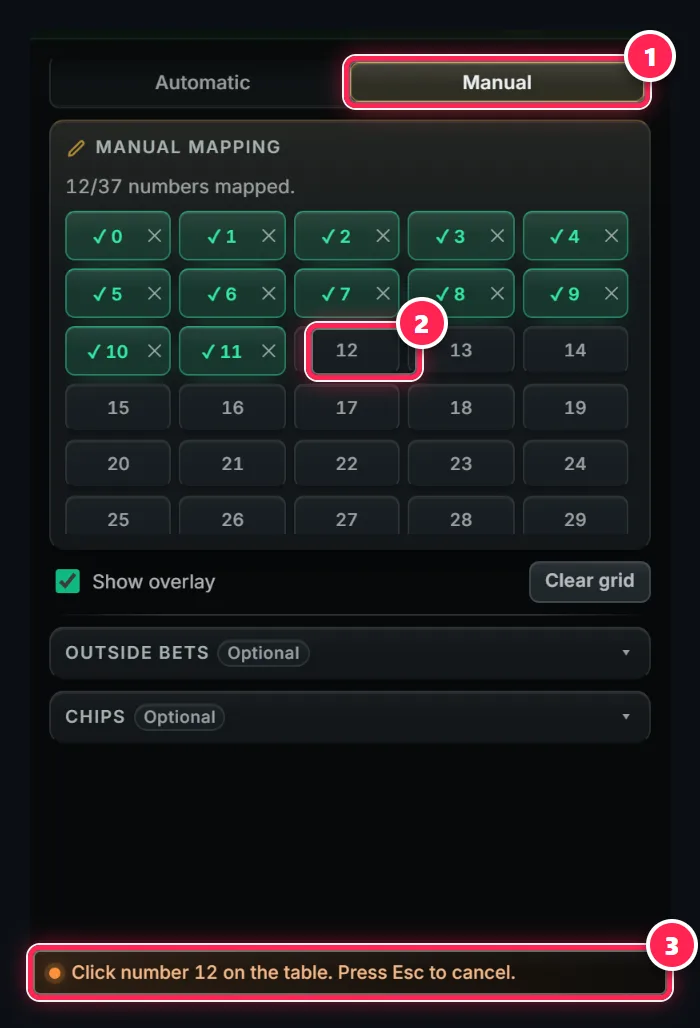
Use it when the detection missed a few numbers, or does not work on your casino.
- Click Manual. You see 37 buttons, 0 to 36. A green
✓means mapped. - Click a number in the Bridge, for example
12. - Then click the same number on the casino table. The message bar tells you what to click. Esc cancels.
The button turns green. ✕ clears one number. Step 3 is done when all 37 numbers are mapped. Do not worry: while you map, your clicks on the table do not place any bet.
Outside bets
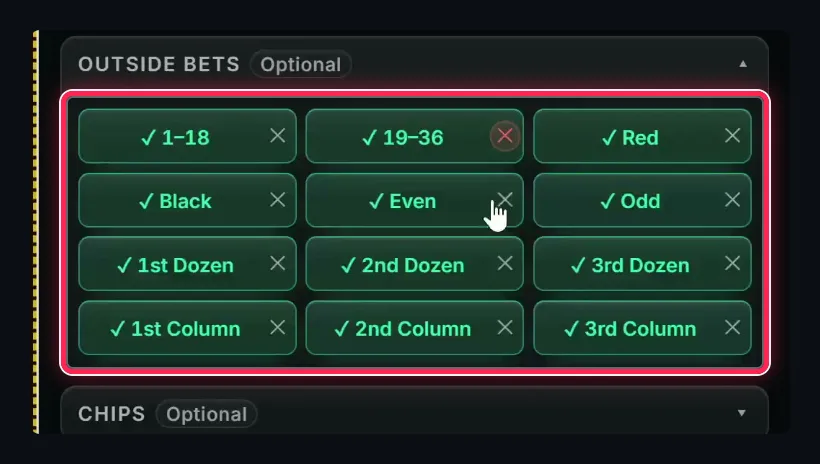
Twelve boxes: 1–18, 19–36, Red, Black, Even, Odd, the three dozens and the three columns. Auto-detect usually finds them. If one is missing, click it in the Bridge, then on the table.
They are marked Optional, but you need them if your RG2030 strategy is Outside Bets or Rows/Dozen.
Chips, stake and bet delay
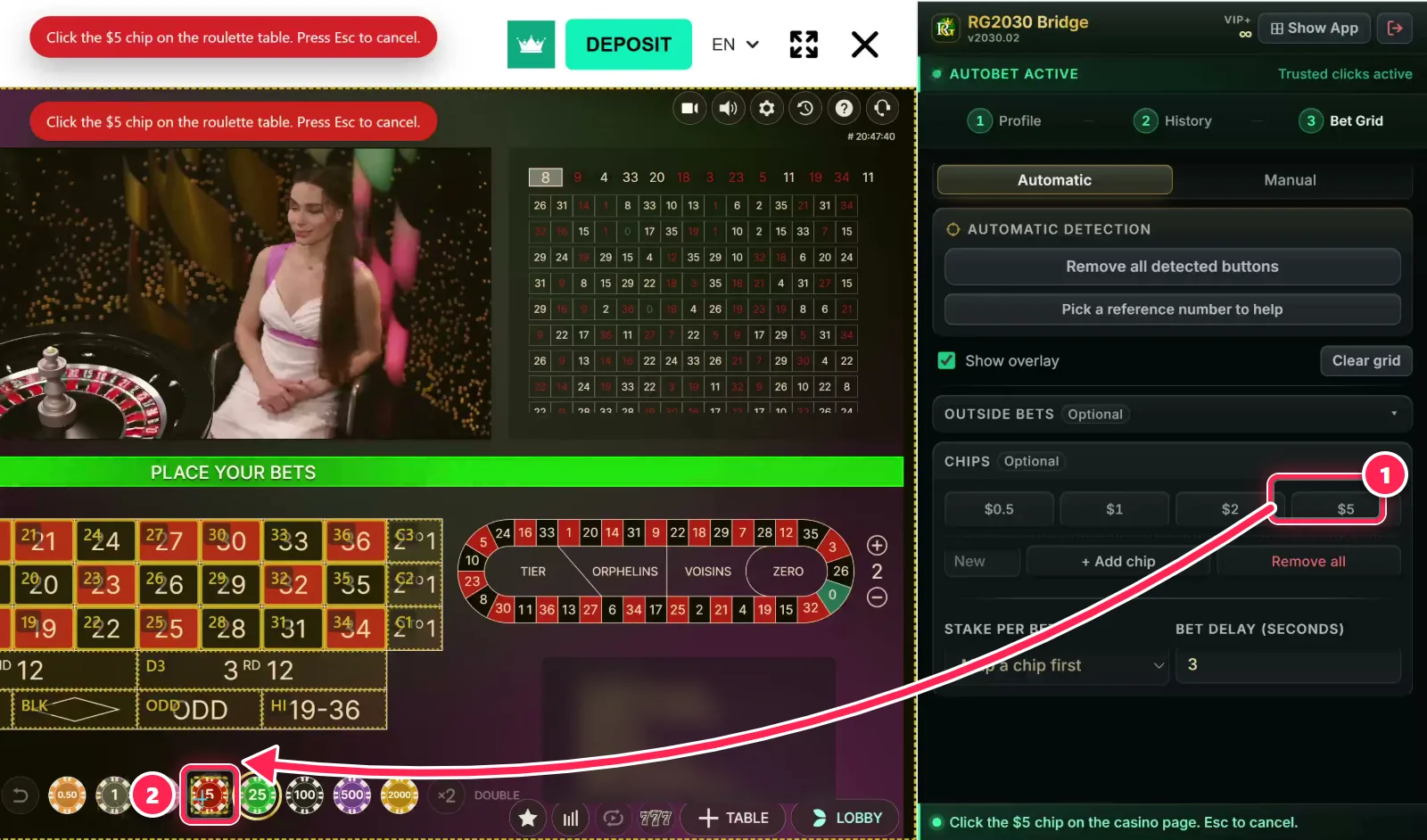
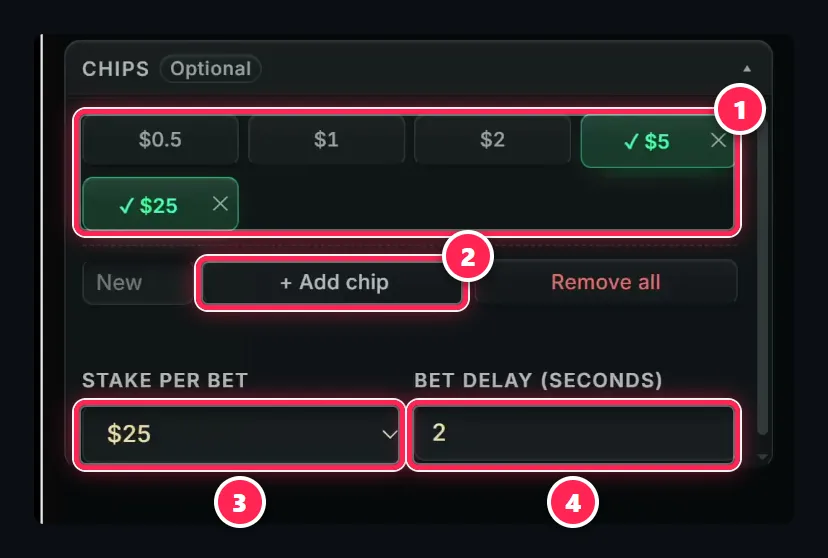
- Open Chips. Click a chip value in the Bridge, for example
$5, then the same chip on the casino table. The casino page shows a green “Captured” note and the chip turns green 1in the Bridge. - Your table has another value? Type it in New and click 2+ Add chip. Remove all deletes all chips.
- 3Stake per bet: the chip Autobet puts on each bet. Only mapped chips are in the list.
- 4Bet delay (seconds): how long Autobet waits after a new number before it bets. The default is 3. If some bets do not reach the table, try 4 or 5.
Chips always show the $ sign, whatever the currency of your table. The Martingale (VIP+ Pack) needs at least 2 mapped chips.
8Switch Autobet on (in RG2030)
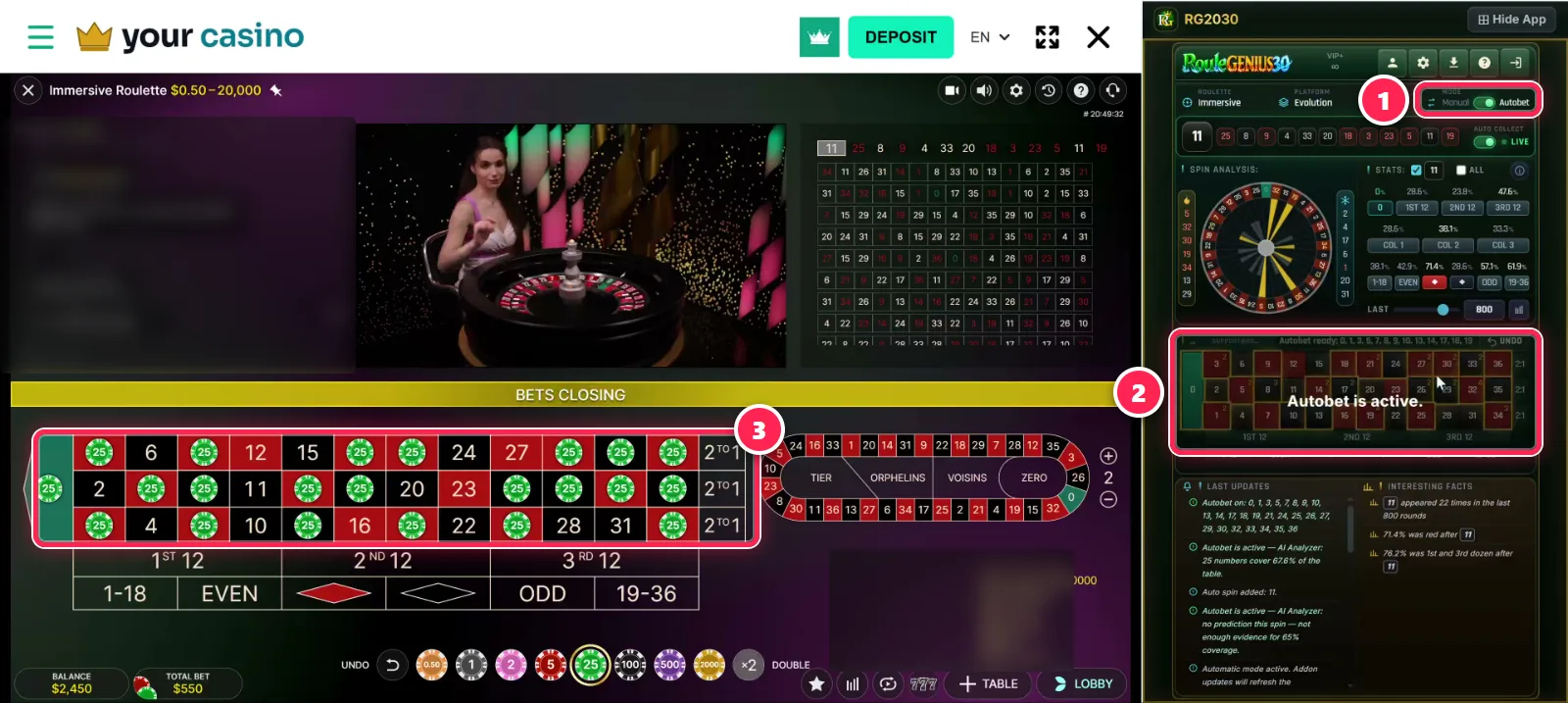
- Click Show App.
- In RG2030, open Settings (gear icon), choose your strategy and its Win Rate, then close Settings.
- 1Move the Mode switch from Manual to Autobet. 2The RG2030 table shows Autobet is active. and 3the Bridge places the chips on the casino table by itself.
Good to know
- Opening Settings switches Autobet off. Switch it on again when you close Settings.
- Autobet does not bet on every spin. It bets only when your strategy finds a good chance.
- Switch grey? Hold the mouse on it: it tells you what is missing (Bet Grid, chips, minutes). The same line is at the top of Last Updates.
- Autobet needs: Premium Pack or higher, Steps 1, 2 and 3 done, at least one chip, minutes on your account and 500 numbers.
9Every day: start in one minute
- Open your live table in Chrome.
- Click the RG2030 Bridge icon. If RG2030 is open in Chrome, you are signed in already.
- Choose the table in Saved Roulette. Steps 2 and 3 connect again by themselves: History reconnected and Bet grid reconnected (37/37 verified). If Step 2 does not turn green, do it again.
- Click Show App, then switch Autobet on, or follow the suggestions and bet by hand.
- When you finish, click Sign out (the door icon, top right), so the minutes stop.
10Problems and fixes
I click Step 2 or Step 3 and nothing happens
A step opens only when the step before it is done (green number). Finish Step 1, then Step 2.
“Casino tab not open — open it in any tab to connect.”
Open the table page saved in the profile. If your casino changes the address when you go back to the lobby, open the table again from the lobby.
“History feed lost — the recent numbers area could no longer be found…”
The casino changed its page (for example a new view). Open the full history again and repeat Step 2.
“Auto-detect found only N numbers. Try picking bet targets manually.”
Switch the casino to the classic, flat table and detect again. Still missing numbers? Use Pick a reference number or map the missing numbers by hand (Manual).
The Autobet bar is red or amber: “Debug was turned off” or “Debug detached”
Someone pressed Cancel on Chrome’s debugging bar. Open Step 3 and click Activate debug.
Some bets do not reach the casino table
Raise Bet delay (seconds) to 4 or 5 (Step 3 → Chips). Check also that the yellow boxes still sit on the numbers (Show overlay).
Last Updates says “Bet NOT sent: … Re-map Step 3 (Bet Grid).”
The casino moved its table. Click Clear grid, then Auto-detect bet buttons and Confirm again.
“Update required” covers the Bridge
Click Download new version, unzip it into the folder you installed the Bridge from (replace the old files), then click Reload RG2030 Bridge.
More problems with installation and Chrome messages: see the Bridge installation guide, section Troubleshooting.


